Screen Recording Requirements
Windows
Client Device Requirements
Bandwidth
- Minimum upload/download speed: 5 Mbps
Storage
- Minimum free disk space required: 2 GB
Display Resolution
It is recommended that agents use the default screen resolution on their device.
Server Requirements
Firewall Whitelisting
| DNS / URL | Port | Reason for Whitelisting |
|---|---|---|
api-us3.pusher.com | 443 | Trigger start/stop recording events |
wss://ws-us3.pusher.com | 443 | Trigger start/stop recording events |
http-intake.logs.datadoghq.com | 443 | Send app activity logs to Datadog |
prod-api.thelevel.ai | 443 | Level API authorization |
screen-case.thelevel.ai | 443 | Start/stop recording controls |
screen.thelevel.ai | 1935 | Stream recording to Level servers |
https://screen-app.thelevel.ai | 443 | Network health checks |
https://sr-releases.thelevel.ai | 443 | Auto-update downloads |
https://screen-app-v3.thelevel.ai | 443 | App UI |
https://launchdarkly.thelevel.ai | 443 | Feature flag configuration |
https://stream.launchdarkly.com | 443 | Feature flag streaming updates |
https://sdk.launchdarkly.com | 443 | Feature flag SDK access |
https://events.launchdarkly.com | 443 | Feature flag event reporting |
https://api.mixpanel.com | 443 | Analytics events |
https://api-eu.mixpanel.com | 443 | Analytics events |
https://api-in.mixpanel.com | 443 | Analytics events |
storage.googleapis.com | 443 | Update binary download storage |
fonts.googleapis.com | 443 | App UI fonts (Google Fonts) |
fonts.gstatic.com | 443 | App UI fonts (Google Fonts static assets) |
time.windows.com | UDP 123 | NTP time sync |
time.google.com | UDP 123 | NTP time sync |
time.cloudflare.com | UDP 123 | NTP time sync |
time.nist.gov | UDP 123 | NTP time sync |
NTP note: The NTP entries above require outbound UDP on port 123. All four are public time servers —
time.windows.comis typically already permitted in Windows environments as Windows itself uses it for system clock sync. Verify with your firewall team that outbound UDP 123 is not blocked.
Operating System
Windows
- Windows 10 (64-bit) - Version 1809 or later
- Windows 11 (64-bit) - Any version
- Windows Server 2019 / 2022 - With Desktop Experience
- Only x64 (64-bit) is supported. ARM is not supported.
GPU Requirements
- DirectX 11-compatible GPU (required for screen capture)
- Minimum VRAM: 512 MB
- Driver: WDDM 1.2 or later
Hardware
- 8 GB of RAM
- Windows: 4 Core processor (Intel Core i5 or later)
Note: CPU usage may vary from 10% to 30% depending on the number and resolution of monitors being recorded.
Installation and setup steps
Step 1: Installation
The Machine-Wide installer deploys to C:\Program Files\... and requires admin privileges. Best for centralized deployment via SCCM, Intune, or Group Policy.
Installation steps:
- Download the Machine-Wide installer
- IT / MDM deployment (SCCM, Intune, GPO): Deploy the MSI as SYSTEM using a silent install command:
msiexec /i "Level Screen Recorder-SystemWide-x.x.x.msi" /qn - Manual installation (end user): The installer must be run from an elevated PowerShell session to ensure all install steps complete correctly. Double-clicking the MSI is not recommended.
- Open PowerShell as Administrator — Start → search
PowerShell→ right-click → Run as administrator. - Paste the path to the downloaded MSI file and copy the generated command:
- Open PowerShell as Administrator — Start → search
- Follow the on-screen prompts.
- The app is now installed and will launch automatically when the user logs in.
User permissions and privileges required for the app to run
The application runs in the user's context. The following operations are used at runtime; endpoint policy (GPO/EDR/AppLocker) must allow them for the app to function fully.
| Command | Purpose | Privileges |
|---|---|---|
| PowerShell | Monitor detection. Runs every 30 seconds. | PowerShell execution allowed. |
| schtasks (query / create / delete) | Auto-launch scheduled task management. | Read, create, and delete own scheduled tasks. |
| whoami | Resolves current user SID to create the auto-launch scheduled task. If blocked, task creation fails silently and the app will not auto-launch on next login. | Read current user identity. |
The app also uses taskkill and reg query/delete on HKCU; these are normally allowed for the user and are not listed above.
Step 2: Security Policy — AppLocker, Antivirus, and Firewall
Endpoint security policies (AppLocker, EDR/AV, and Windows Firewall) can block or flag Level Screen Recorder components if they are not explicitly permitted. This section lists the minimum allowlist entries required.
AppLocker (Application Control)
Publisher rule (preferred):
| Field | Value |
|---|---|
| Publisher / O | Ujwal Inc |
| Product name | Level Screen Recorder |
| File description | (any) |
| File version | (any version or set a minimum) |
If publisher-based rules are not available (unsigned environment or WDAC path-based policy), add a path rule for the install directory:
%ProgramFiles%\Level Screen Recorder\*
PowerShell: The MSI installer runs PowerShell internally during install, upgrade, and uninstall. Ensure
%SystemRoot%\System32\WindowsPowerShell\v1.0\powershell.exeis allowed for SYSTEM.
Antivirus / EDR
Add the following as exclusion paths:
| Path | Notes |
|---|---|
%ProgramFiles%\Level Screen Recorder\ |
Main install directory — covers all executables including versioned subfolders |
%ProgramData%\Level Screen Recorder\ |
Service data and configuration |
%APPDATA%\Level Screen Recorder\ |
Per-user logs and plugin cache |
Auto-updates: The watchdog service (running as LocalSystem) downloads and silently installs updates via
msiexec /qn— no UAC prompt or user action required. This is expected behaviour and not a security incident.
Windows Firewall
Refer to the Firewall Whitelisting section for the full list of URLs and ports to allow.
Corporate SSL / TLS Inspection (HTTPS Proxy)
If your organisation uses SSL inspection (a MITM proxy that re-signs HTTPS traffic with a corporate root CA), the app and its auto-updater will fail to connect to Level servers unless the corporate root certificate is trusted by the machine.
Symptoms:
- Auto-updates stop working silently — the watchdog service attempts the download, receives a TLS certificate error, and gives up without notifying the user.
- The app itself may fail to reach Level servers, causing login failures or recording controls to become unresponsive.
Resolution:
The app automatically reads trusted certificates from the Windows Certificate Store (Local Machine → Trusted Root Certification Authorities). No app-level configuration is required. Ensure your corporate root CA is distributed to the machine's certificate store via GPO or your MDM platform — this is typically already done as part of the standard device image.
If the root CA is present in the store but the issue persists, add the Level server domains listed in the Firewall Whitelisting section to your proxy bypass list as an alternative.
Step 3: Launch the App
Note: Screenshots may differ slightly from the actual UI of the app.
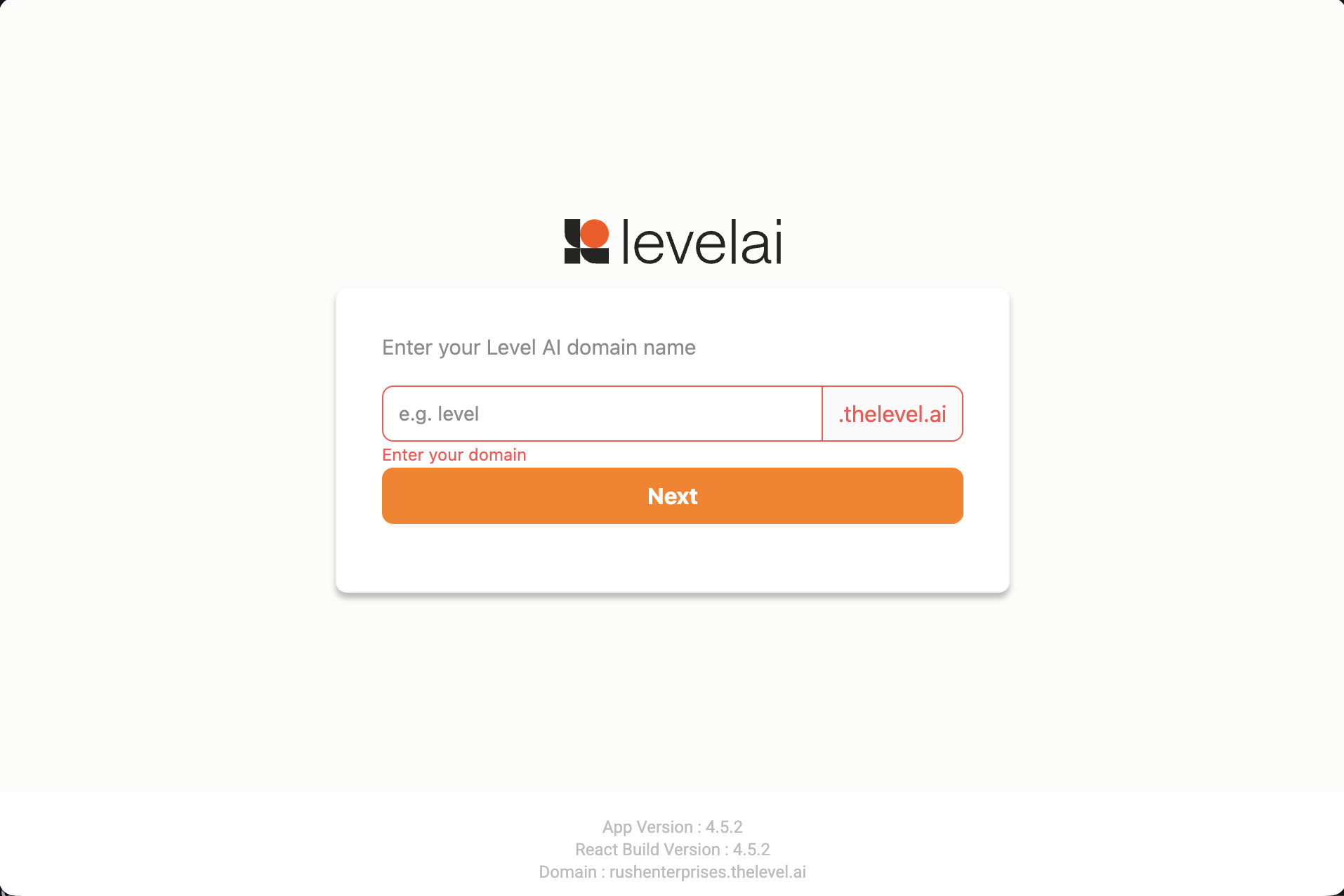
- Organization name — After successful installation and launch, the application asks for the organization name (ask your admin if you do not know it). Example: for Level AI, use
level.
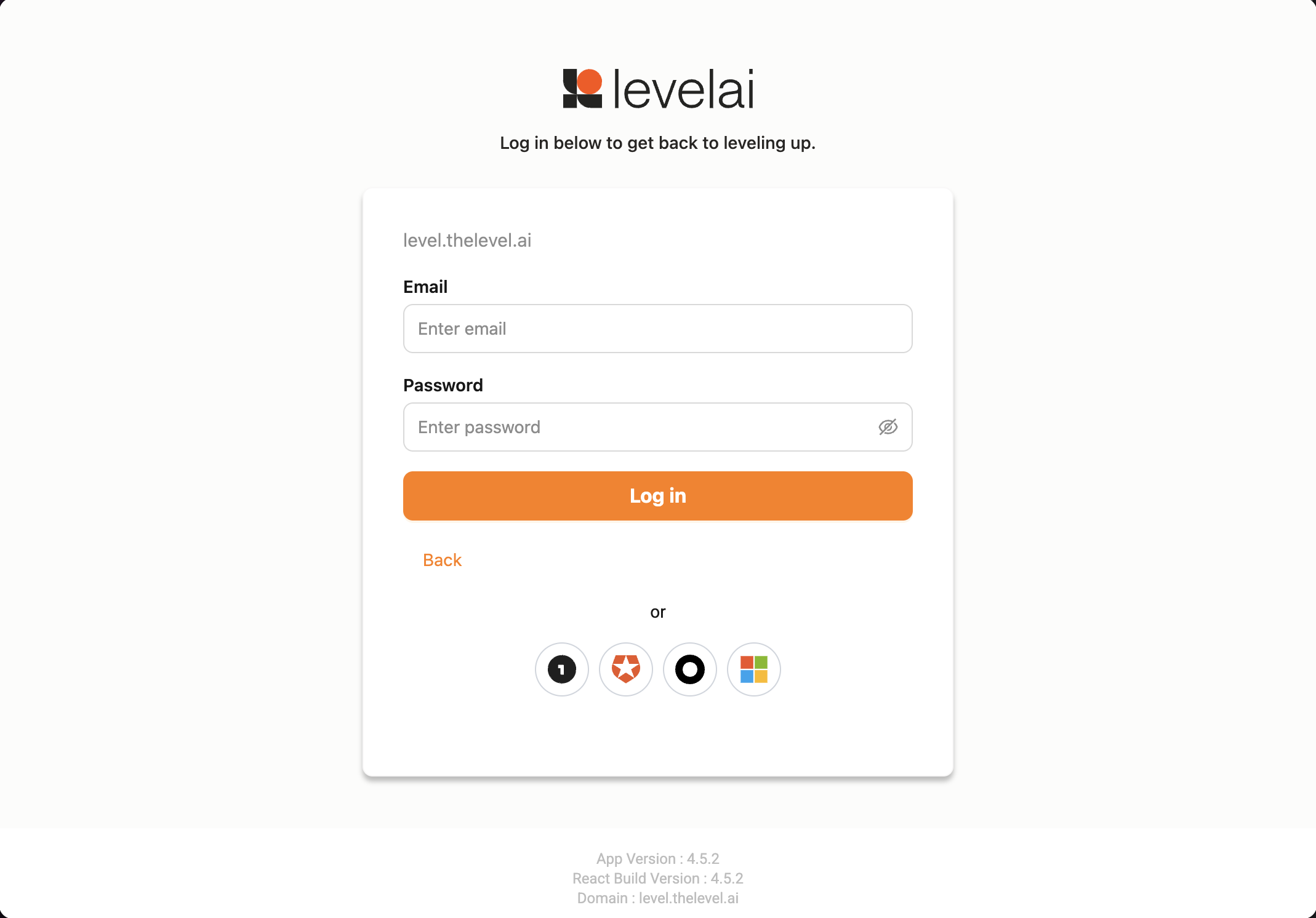
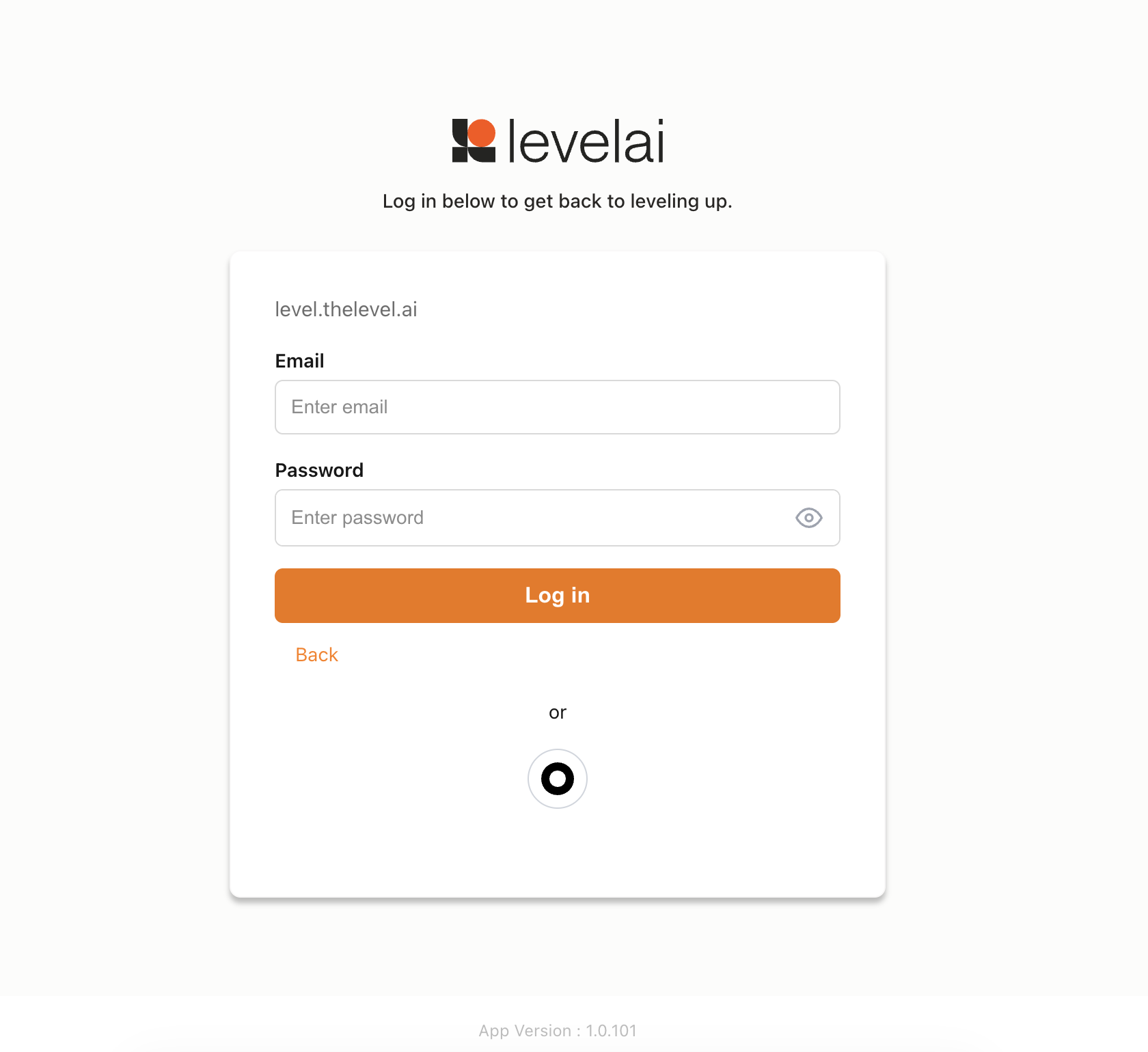
- Login — Proceed to the login page and sign in with your credentials or use available SSO.
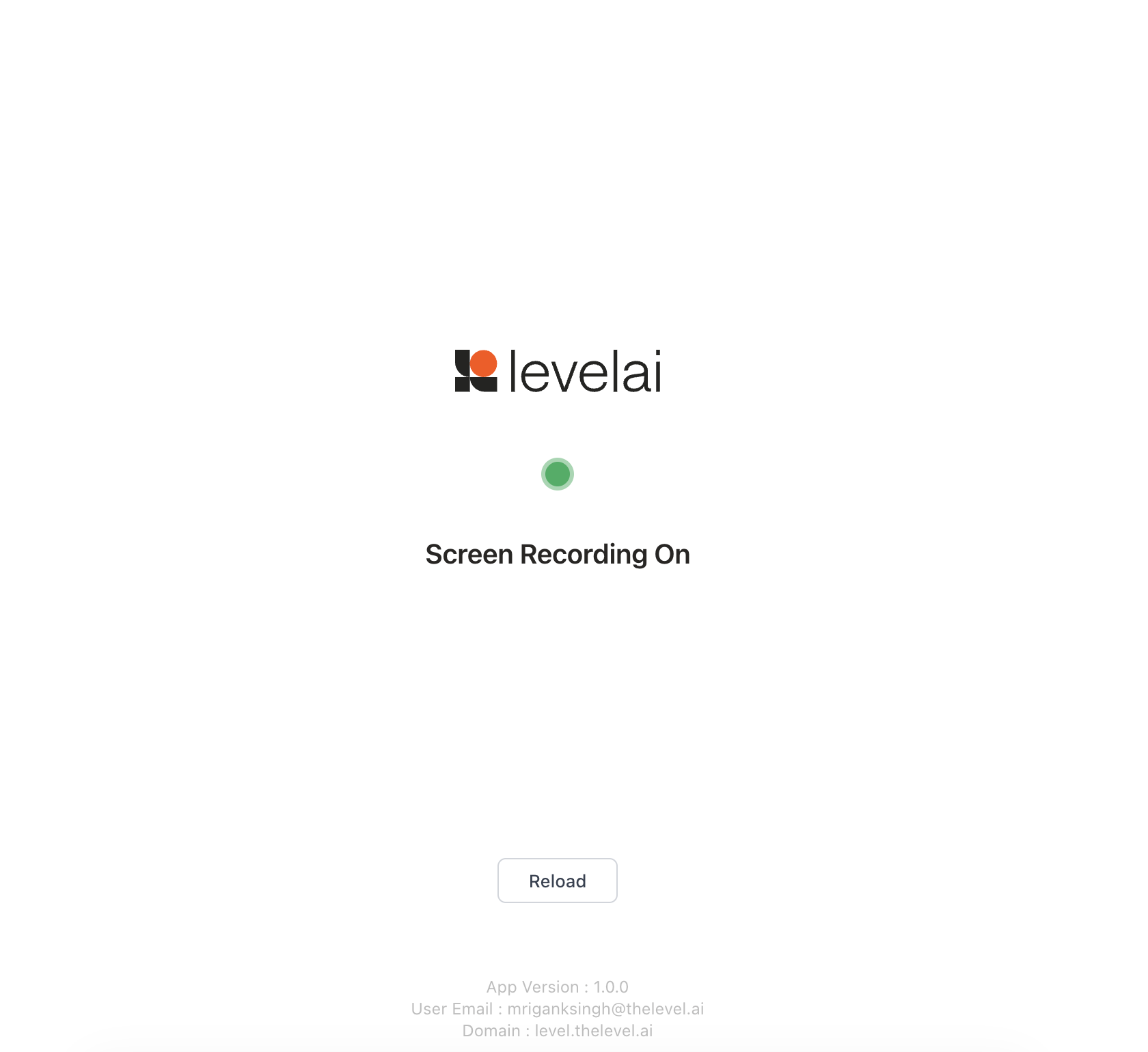
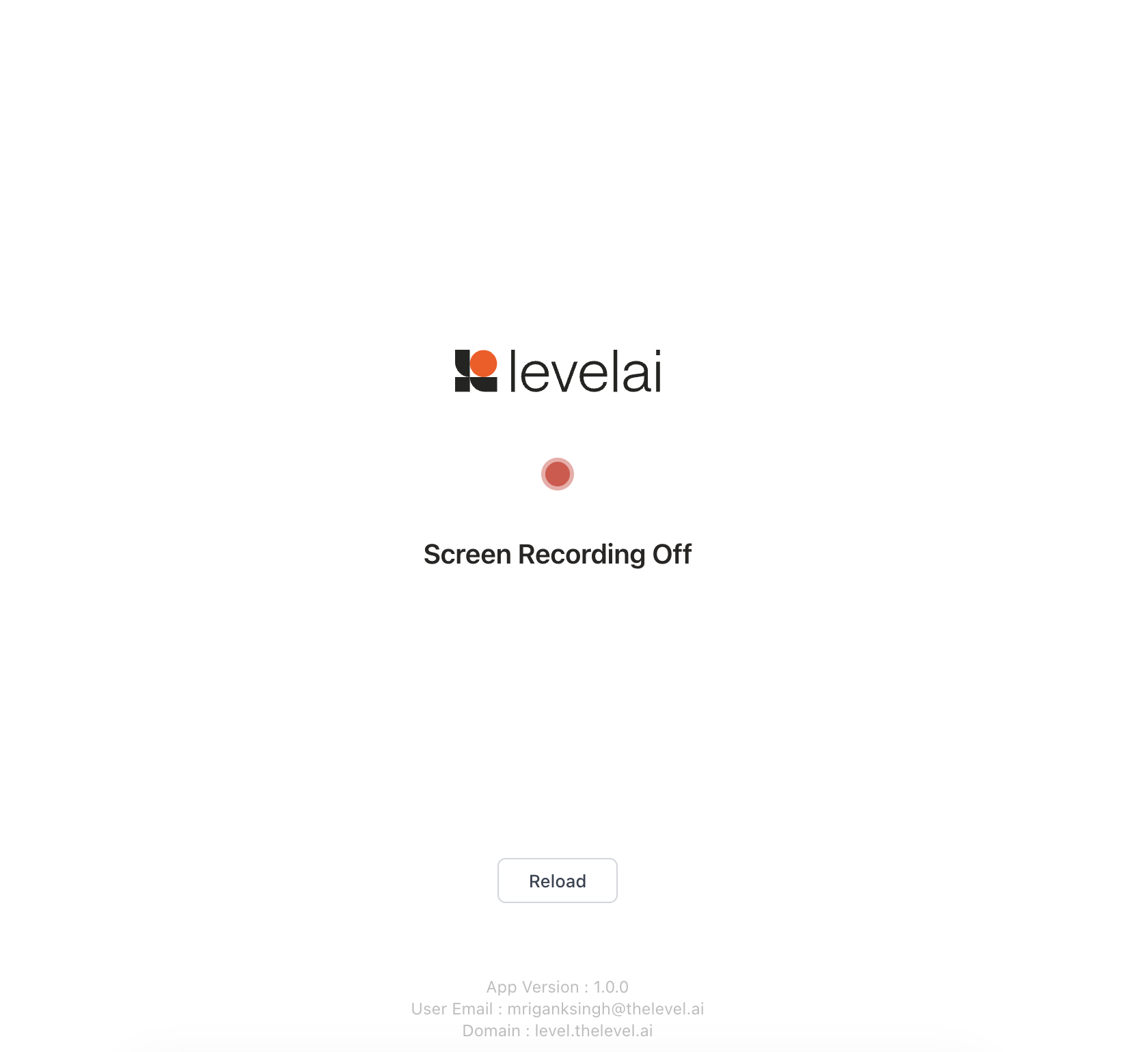
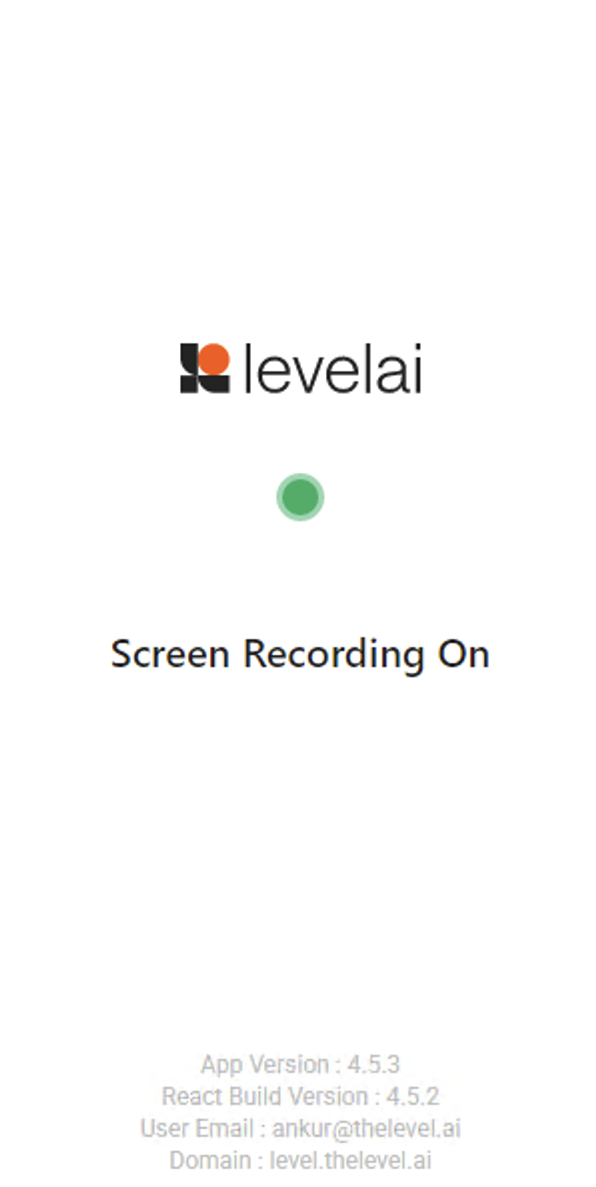
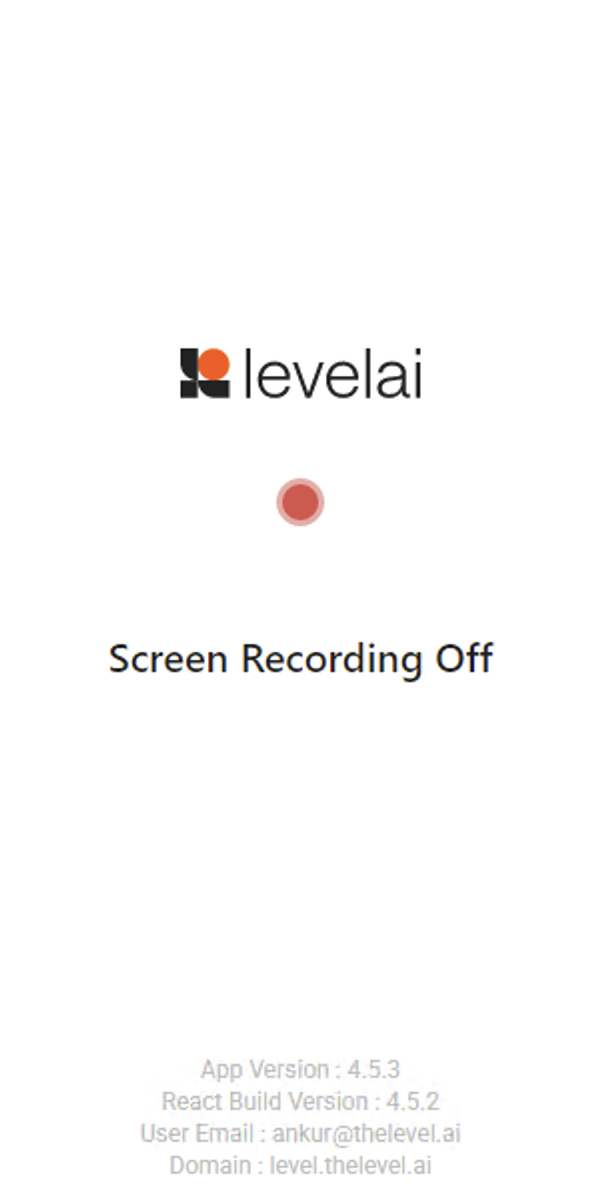
- Status / recording page — You should be greeted with a status page. It shows whether recording is currently on or off; the page reflects the current state.
Installation and setup steps
Step 1: Installation
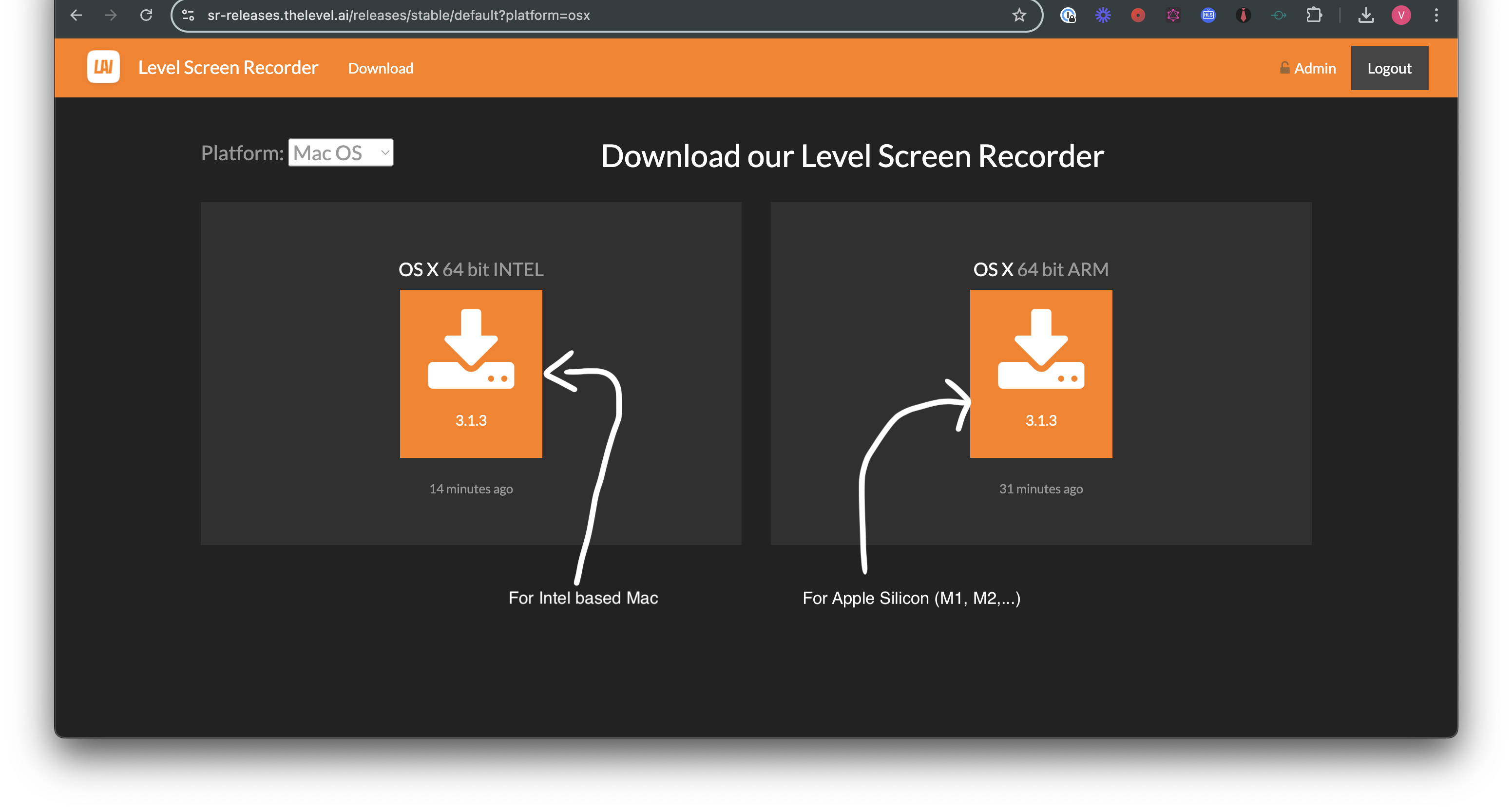
- Navigate to this link and choose macOS in platform dropdown if not already selected, then click the download icon based on the Mac architecture.
- After the download, you should have a file named Level Screen Recorder x.x.x.dmg.
- Double click Level Screen Recorder x.x.x.dmg and drag Level Screen Recorder to the Applications folder.
- Open Level Screen Recorder from Applications. After this, the app launches automatically on system login.
Step 2: Launch the App
Note: Screenshots may differ slightly from the actual UI of the app.
- Organization name — After successful installation and launch, the application asks for the organization name (ask your admin if you do not know it). Example: for Level AI, use
level.
- Login — Proceed to the login page and sign in with your credentials or use available SSO.
- Status / recording page — You should be greeted with a status page. It shows whether recording is currently on or off; the page reflects the current state.
Client Device Requirements
Supported ChromeOS Version
- Minimum: ChromeOS 132 or later (required for multi-screen capture; earlier versions are not supported).
- Keep managed devices on the latest stable ChromeOS channel.
Bandwidth
- Minimum upload speed: 2 Mbps (for LOW quality with 1 monitor at 3,500 kbps)
- Recommended upload speed: 5 Mbps or higher (for multi-monitor recording; HIGH quality is 5,500 kbps per monitor, up to 22,000 kbps with 4 monitors)
- The app uses at most 40% of the reported downlink for uploads, clamped between 0.25–5 Mbps
- Adaptive quality automatically downgrades the encoding bitrate when bandwidth is limited (the resolution stays fixed at 720p — see below)
Storage
- Installation size: minimal — the app is a signed Web Bundle deployed via Admin Console (no local installer)
- Recording chunks are temporarily stored in IndexedDB (default cap: 5 GB) and automatically uploaded to the cloud and deleted
- Adaptive quality reduces the encoding bitrate when storage usage exceeds 50%; recording pauses automatically at 80% and resumes once chunks are uploaded
CPU and Memory Utilisation
- The app runs inside the Chrome browser process on the Chromebook
- Recording uses canvas-based compositing at 3 FPS with H.264 MP4 encoding
- Adaptive quality monitors CPU pressure and automatically downgrades the encoding bitrate under heavy load
- Multi-monitor recording increases CPU usage proportionally (each additional display adds to the composite canvas)
Display Resolution
It is recommended that agents use the default screen resolution on their device. The app captures at native resolution and composites all displays into a single 720p-tall frame; the width grows proportionally with the number of monitors. Quality profiles (HIGH / MEDIUM / LOW) adjust only the encoding bitrate (HIGH 5,500 / MEDIUM 4,500 / LOW 3,500 kbps per monitor) — the composite height stays at 720p.
Server Requirements
Firewall Whitelisting
| DNS / URL | Port | Reason for Whitelisting |
|---|---|---|
prod-api.thelevel.ai | 443 | Level API authorization and login |
screen-prod.thelevel.ai | 443 | Platform API (recording session, token refresh, audit logs) |
storage.googleapis.com | 443 | Chunk uploads to Google Cloud Storage |
http-intake.logs.datadoghq.com | 443 | Send app activity logs to Datadog |
*.ingest.us.sentry.io | 443 | Error and performance monitoring (Sentry) |
sr-releases.thelevel.ai | 443 | IWA update manifest and signed bundle downloads |
www.cloudflare.com | 443 | Time synchronization — primary (HTTPS trace endpoint) |
timeapi.io | 443 | Time synchronization — fallback (used if Cloudflare endpoint is unreachable) |
| Your Okta / SSO IdP domain | 443 | SSO authentication (if Okta SSO is configured for your organization) |
Limited Availability Release
To roll out the app to a specific group of users before enabling it org-wide, use Google Admin Console's Org Unit (OU) hierarchy:
- Create a child Org Unit in Google Admin Console (e.g., Org > Screen Recorder Beta Testers).
- Move the target users/devices into that child OU.
- Apply the IWA policies only at this OU level — follow Step 1: Installation below, selecting this child OU at each step. This covers the Web Bundle ID, Update manifest URL, Web capabilities (screen recording origin), and force install + launch on login settings. Do not apply these policies at the parent OU level.
Only users in the child OU will receive the app. Once validated, you can move additional users into the OU or apply the same policies at a higher level for full rollout.
Installation and setup steps
Step 1: Installation
Note: If you are doing a limited rollout, perform these steps on the child Org Unit you created in the Limited Availability Release section above, not the parent OU.
Go to admin.google.com → Devices → Chrome → Apps & extensions.
Select the Users & browsers tab.
Select the target Org Unit.
Click + → Add Isolated Web App.
Fill in:
Field Value Web bundle ID Provided by Level AI Update manifest URL Provided by Level AI Click Save.
Go to Devices → Chrome → Web capabilities.
Select the same Org Unit.
Click Add origin.
Fill in:
| Field | Value |
|---|---|
| Origin | Provided by Level AI |
| Screen recording | Allowed |
Click Save.
Go to Devices → Chrome → Apps & extensions → Users & browsers.
Select the same Org Unit.
Click the IWA entry for this app (the list shows the update manifest URL and bundle id; selecting it opens the details panel on the right).
In the right-side panel, set Installation policy and Launch on login as below, then click Save.
| Setting | Value |
|---|---|
| Installation policy | Force install + pin to ChromeOS taskbar |
| Launch on login | Force launch and prevent closing |
The panel also shows Web bundle ID and Update manifest URL; they must match the values above. You may see This app is unverified and may not work properly — that is expected for self-hosted IWAs on managed devices.
Under Launch on login, the console may warn that preventing IWAs from being closed might affect device speed and performance; that is normal for this setting.
On a test Chromebook:
- Go to chrome://policy → click Reload policies.
- Confirm IsolatedWebAppInstallForceList shows the web bundle ID and update manifest URL.
- Sign out and sign back in. The app should open automatically.
- Verify the app is pinned to the ChromeOS taskbar.
- Try closing the app window — it should not close.
Policy sync can take 5–30 minutes. Signing out and back in speeds it up.
Step 2: Launch the App
Note: Screenshots may differ slightly from the actual UI of the app.
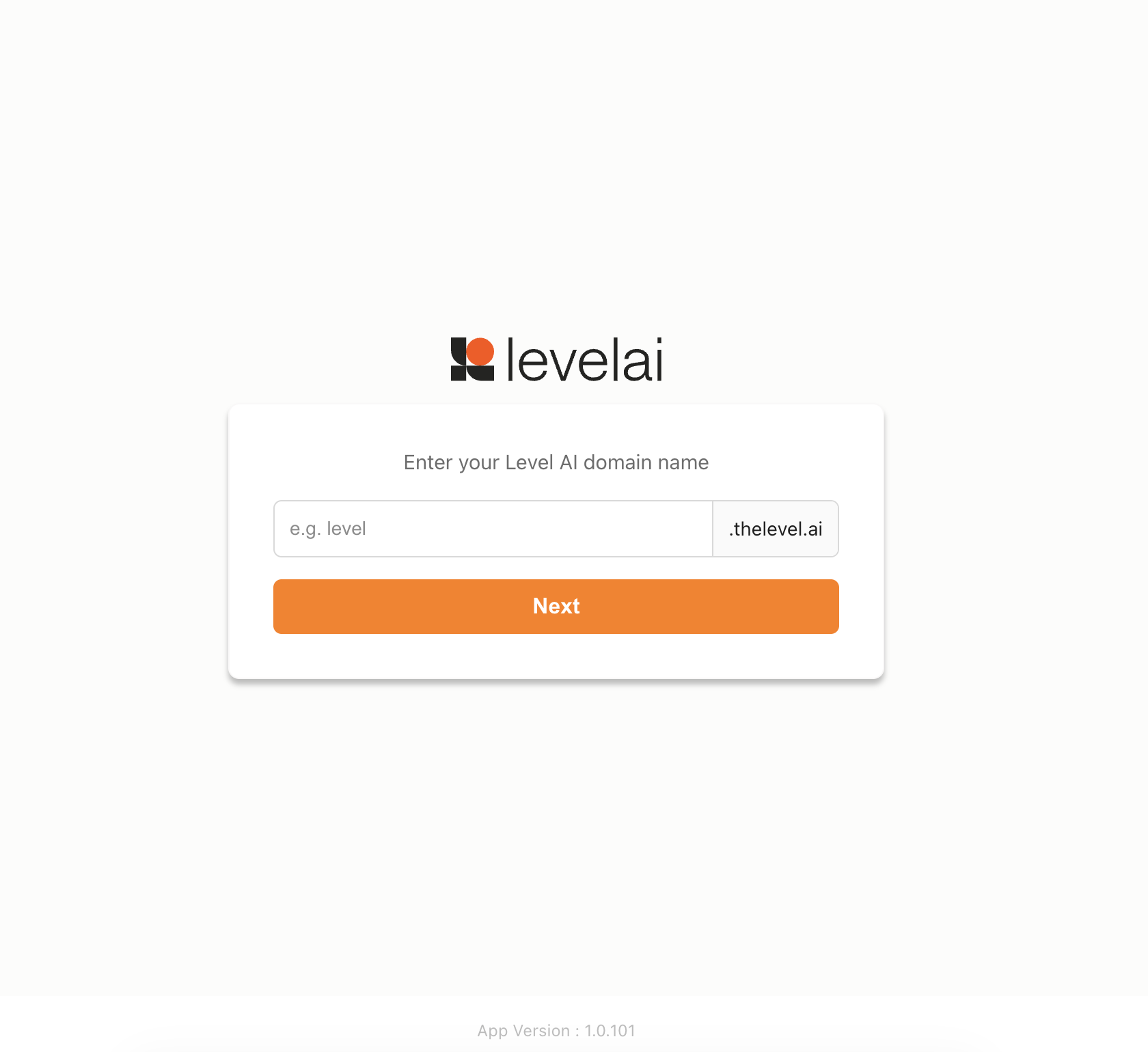
- Organization name — After successful installation and launch, the application asks for the organization name (ask your admin if you do not know it). Example: for Level AI, use
level.
- Login — Proceed to the login page and sign in with your credentials or use available SSO.
- Status / recording page — You should be greeted with a status page. It shows whether recording is currently on or off; the page reflects the current state.