Screen Recording Requirements
Windows
Client Device Requirements
Bandwidth
- Minimum upload/download speed: 5 Mbps
Storage
- Minimum free disk space required: 2 GB
Display Resolution
It is recommended that agents use the default screen resolution on their device.
Server Requirements
Firewall Whitelisting
| DNS / URL | Port | Reason for Whitelisting |
|---|---|---|
api-us3.pusher.com | 443 | Trigger start/stop recording events |
wss://ws-us3.pusher.com | 443 | Trigger start/stop recording events |
http-intake.logs.datadoghq.com | 443 | Send app activity logs to Datadog |
prod-api.thelevel.ai | 443 | Level API authorization |
screen-case.thelevel.ai | 443 | Start/stop recording controls |
screen.thelevel.ai | 1935 | Stream recording to Level servers |
https://screen-app.thelevel.ai | 443 | Network health checks |
https://sr-releases.thelevel.ai | 443 | Auto-update downloads |
https://screen-app-v3.thelevel.ai | 443 | App UI |
https://launchdarkly.thelevel.ai | 443 | Feature flag configuration |
https://stream.launchdarkly.com | 443 | Feature flag streaming updates |
https://sdk.launchdarkly.com | 443 | Feature flag SDK access |
https://events.launchdarkly.com | 443 | Feature flag event reporting |
https://api.mixpanel.com | 443 | Analytics events |
https://api-eu.mixpanel.com | 443 | Analytics events |
https://api-in.mixpanel.com | 443 | Analytics events |
storage.googleapis.com | 443 | Update binary download storage |
fonts.googleapis.com | 443 | App UI fonts (Google Fonts) |
fonts.gstatic.com | 443 | App UI fonts (Google Fonts static assets) |
time.windows.com | UDP 123 | NTP time sync |
time.google.com | UDP 123 | NTP time sync |
time.cloudflare.com | UDP 123 | NTP time sync |
time.nist.gov | UDP 123 | NTP time sync |
NTP note: The NTP entries above require outbound UDP on port 123. All four are public time servers.
time.windows.comis typically already permitted in Windows environments because Windows uses it for system clock sync. Verify with your firewall team that outbound UDP 123 is not blocked.
[!NOTE] Are you evaluating the Level Screen Recorder for your organization? Read our dedicated Security Architecture & FAQ to understand how we secure updates, encrypt data, and accommodate EDR/Antivirus policies.
Client Device Requirements
Storage
- 2 GB free disk space
Display Resolution
Use the computer’s default screen resolution.
Operating System
- Windows 10 or Windows 11 (64-bit)
- Windows Server 2019 or 2022 with Desktop Experience
- 64-bit only (ARM is not supported)
GPU Requirements
- DirectX 11 graphics with at least 512 MB video memory. (Highly recommended for hardware-accelerated capture. Systems without a compliant GPU will automatically fall back to software-based GDI capture, which may increase CPU usage).
Hardware
- 8 GB RAM
- 4-core processor (Intel Core i5 or similar)
Network Requirements
Bandwidth
| Screens | Upload |
|---|---|
| 1 | 5 Mbps |
| 2 | 8 Mbps |
| 3 | 12 Mbps |
| 4 | 16 Mbps |
Firewall Whitelisting
Allow outbound traffic from both the signed-in user's session and Windows services running as NT AUTHORITY\SYSTEM. Use DNS names rather than fixed IP addresses because Level services and signed download URLs can change IP addresses.
Required for every deployment
| Destination | Port | Purpose |
|---|---|---|
screen-prod.thelevel.ai | TCP 443 | Main backend API for Level Screen Recorder and Watchdog |
screen.thelevel.ai | TCP 443 | Secure recording stream (RTMPS) |
screen-app-v3.thelevel.ai | TCP 443 | Level Screen Recorder user interface |
storage.googleapis.com | TCP 443 | Signed Watchdog and Level Screen Recorder MSI downloads |
time.windows.com | UDP 123 | Time synchronization |
time.google.com | UDP 123 | Time synchronization fallback |
time.cloudflare.com | UDP 123 | Time synchronization fallback |
time.nist.gov | UDP 123 | Time synchronization fallback |
When Agent Assist is enabled
Add these destinations only if Agent Assist is enabled for your tenant (you see both Screen Recording and Agent Assist in the app; see Step 3: Launch the App). If you use Screen Recording without Agent Assist, skip this table.
| Destination | Port | Purpose |
|---|---|---|
aa-auth.thelevel.ai | TCP 443 | Agent Assist authentication and session cookies |
agent-assist.web.app | TCP 443 | Agent Assist UI module (federated widget and assets) |
launchdarkly.thelevel.ai | TCP 443 | Agent Assist feature-flag configuration |
api-js.mixpanel.com | TCP 443 | Agent Assist analytics events |
events.launchdarkly.com | TCP 443 | Agent Assist feature-flag analytics events |
Important: Permit HTTPS redirects to the destinations listed above and do not require interactive proxy authentication. The Watchdog runs in Session 0 as
SYSTEM, so a proxy rule that works only after a user signs in will block enrollment and updates.
HTTPS inspection
If your organization decrypts HTTPS traffic, place the corporate root CA in Local Computer → Trusted Root Certification Authorities. The Watchdog and Level Screen Recorder read trusted roots from the Windows certificate store. If inspection still blocks the connection, bypass inspection for the Level, download, and (when Agent Assist is enabled) Agent Assist destinations above.
Time synchronization
The NTP entries require outbound UDP 123. time.windows.com is normally already available on managed Windows devices. If UDP 123 is blocked, Level Screen Recorder uses HTTPS time through screen-prod.thelevel.ai; accurate Windows system time is still required for authentication and recording timestamps.
Step 1: Installing Level Screen Recorder v5
Deploy the Level AI Watchdog MSI (LevelAIWatchdog-x.y.z.msi) through your normal tooling (Intune, SCCM, Group Policy), or run it in PowerShell as Administrator for a single machine. Deploy it as SYSTEM. Do not double-click it.
Pass your tenant name at deploy time so the machine is known from the first poll.
- Download the Watchdog installer
- Enter the MSI path and organization name below. Select Generate command to obtain the enrollment token and create the installation command.
Do not install the Level Screen Recorder app MSI yourself. The Watchdog does that.
You’ll need local admin rights to install, plus the enrollment token from the install command builder. Once installed, the Watchdog runs as a background Windows service (LocalSystem); it appears in Apps & Features but creates no shortcuts.
Confirm it’s running:
Get-Service -Name LevelScreenRecorderWatchdog
Once the Watchdog is on the machine, it polls the Level platform, receives a fresh install command, and silently downloads and installs the Screen Recorder app. It then manages every future update, repair, and version change on its own.
What the end user sees
No admin rights required. The app installs silently in the background and opens when they next sign in to Windows.
On first launch they enter their organization name (the part before .thelevel.ai), sign in with their account or SSO, and land on a simple status page showing whether recording is on or off.
Step 2: Security Policy (AppLocker, Antivirus, and Firewall)
Ask the client's endpoint-security team to approve both the Watchdog (SYSTEM) and Level Screen Recorder (signed-in user) before deployment. A partial allowlist can leave the service installed but unable to enroll, download, install, or launch Level Screen Recorder.
Review the Windows service restrictions and endpoint-security checklist below to ensure proper operation.
Who needs what
Two contexts, not two people:
| Context | Who this is | Rights |
|---|---|---|
| Installer and Watchdog service | An administrator installs the MSI (Intune, SCCM, GPO, or PowerShell as Administrator). The Watchdog service then runs as LocalSystem, a built-in Windows account, not an IT login. | Admin is required only to install. The service then runs in the background with machine-level rights. |
| Signed-in user | The person using the PC. | Standard-user rights. No admin. Must not start, stop, or configure the Watchdog service. |
The installer and the Watchdog service must be allowed to:
- Install a per-machine MSI and create/start
LevelScreenRecorderWatchdog. - Run silent
msiexec.exefor Watchdog and Level Screen Recorder install, update, repair, and uninstall. - Read and write
HKLM\SOFTWARE\Level AI\Watchdogand the Watchdog and Level Screen Recorder folders underC:\Program Files\andC:\ProgramData\.
The signed-in user must be allowed to:
- Use an interactive desktop (not a locked, disconnected, or Session 0 desktop).
- Read/execute
C:\Program Files\Level Screen Recorder\. - Read/write
%APPDATA%\Level Screen Recorder\,C:\ProgramData\Level Screen Recorder\, and%TEMP%. - Use screen-capture APIs and DirectX Desktop Duplication (DLP that blocks capture produces a black recording).
- Create, query, update, and delete their own
LevelScreenRecorder_Scheduler_<user-SID>scheduled task. - Use the user's Windows proxy settings and the Local Computer trusted-root store.
Windows Service Restrictions
Level Screen Recorder is managed by a separate Windows service, Level AI Watchdog. If a GPO, MDM baseline, EDR product, or service-control policy restricts third-party services, create an explicit exception with the following properties:
| Property | Value |
|---|---|
| Service display name | Level Screen Recorder Watchdog |
| Service name | LevelScreenRecorderWatchdog |
| Executable path | C:\Program Files\Level AI Watchdog\LevelScreenRecorderWatchdogSvc.exe |
| Account | NT AUTHORITY\SYSTEM (LocalSystem) |
| Startup type | Automatic |
| Recovery | Restart after service failure |
| Self-heal task | WdSvcAutoHeal, runs every minute as SYSTEM |
Required Administrator / IT Allowances:
- Allow the Watchdog MSI, deployed from an elevated administrator or
SYSTEMcontext, to create and startLevelScreenRecorderWatchdog. - Allow the service to run as
LocalSystem. Do not apply a GPO or MDM policy that changes its startup type to Disabled or Manual. - Allow the signed Watchdog executables under
C:\Program Files\Level AI Watchdog\to run asSYSTEM. - Allow the
WdSvcAutoHealscheduled task to run asSYSTEMwith highest privileges. This task restores the service after an unexpected graceful stop. - Permit the service to write to
C:\ProgramData\Level AI Watchdog\and to run silent Windows Installer operations for Level Screen Recorder updates.
Important: Do not grant end users permission to start, stop, configure, or log on as the service. The service is installed and controlled by Windows under
LocalSystem; Level Screen Recorder itself runs in the signed-in user's session with standard-user privileges.
Antivirus / EDR
To ensure smooth operation, you must configure your EDR/Antivirus solution.
Option A: Trusted Publisher Rule (Highly Recommended) Where policy permits, create a trusted-publisher rule for production files signed by Ujwal Inc (Level AI's code-signing publisher). This is the most secure and robust method.
Option B: Folder Whitelisting (Fallback) If publisher rules are not an option, you must explicitly exclude or allow the following installation and data folders:
C:\Program Files\Level AI Watchdog\
C:\ProgramData\Level AI Watchdog\
C:\Program Files\Level Screen Recorder\
C:\ProgramData\Level Screen Recorder\
And per user:
%APPDATA%\Level Screen Recorder\
Also permit MSI files staged under C:\ProgramData\Level AI Watchdog\Updates\. The Watchdog downloads and installs updates silently as SYSTEM; no UAC prompt is expected.
Minimum EDR Requirements At minimum, EDR must not:
- Quarantine or terminate the Watchdog service host, Watchdog executable, or either packaged
LevelScreenRecorderProcessRunner.exe. - Block the Watchdog service from launching
msiexec.exe. - Block the
WdSvcAutoHealtask. - Block Level Screen Recorder from using Windows screen-capture APIs.
AppLocker
Option A: Publisher Rule (Recommended) Create publisher rules for Publisher: Ujwal Inc covering both product names, Level AI Watchdog and Level Screen Recorder, without restricting the rule to one current file version.
Option B: Path Rules (Fallback) If publisher rules are not available, use controlled path rules for:
%ProgramFiles%\Level AI Watchdog\*
%ProgramFiles%\Level Screen Recorder\*
Required Watchdog (SYSTEM) Operations:
Allow these operations:
%SystemRoot%\System32\msiexec.exefrom the Watchdog service for silent lifecycle actions.%SystemRoot%\System32\schtasks.exe,%SystemRoot%\System32\taskkill.exe, and%SystemRoot%\System32\reg.exefor Watchdog maintenance and diagnostics.
Level Screen Recorder normally uses its signed native process runner. If AppLocker, WDAC, EDR, or child-process rules block by parent process, allow these only when launched by Level Screen Recorder:
| Process | Purpose | Runs as |
|---|---|---|
LevelScreenRecorderProcessRunner.exe |
User identity, monitor detection, certificate and security diagnostics, scheduled-task operations | Signed-in user |
schtasks.exe |
Create/query/update the user's auto-launch task | Signed-in user |
reg.exe |
Read the user's Windows proxy settings | Signed-in user |
taskkill.exe |
Recover duplicate or unresponsive Level Screen Recorder processes | Signed-in user |
Blocking all fallback utilities does not grant a security boundary if the native helper remains allowed, but it reduces diagnostics and recovery. Prefer publisher and parent-child rules over broad path exclusions.
Firewall and HTTPS inspection
Apply all entries in Firewall Whitelisting, including for SYSTEM. For TLS inspection requirements, see HTTPS inspection.
Step 3: Launch the App
Note: Screenshots may look slightly different in your build.
Enter your organization name, the part before
.thelevel.ai(ask your admin if you are unsure). Example for Level AI:level.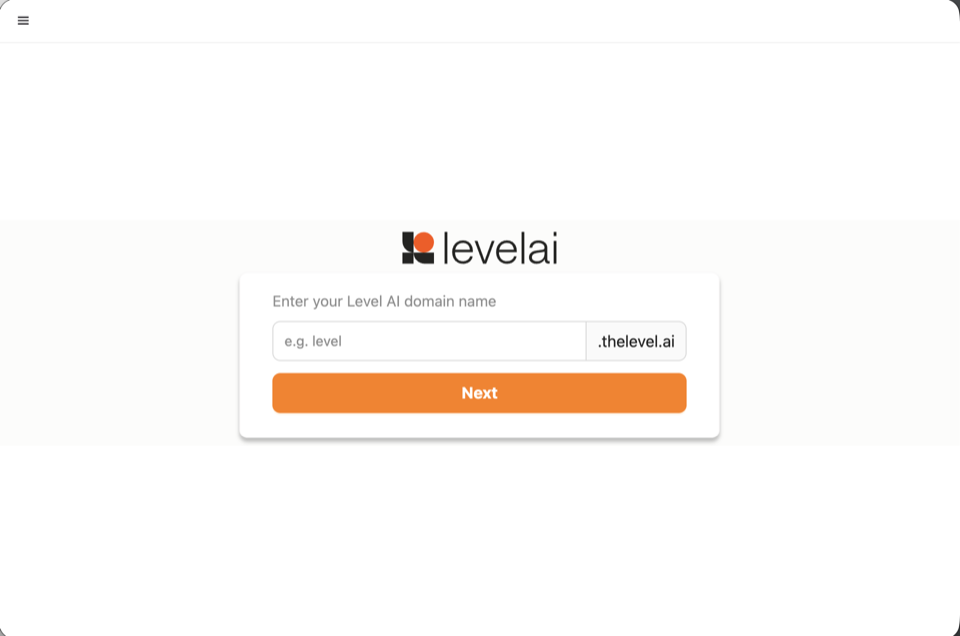
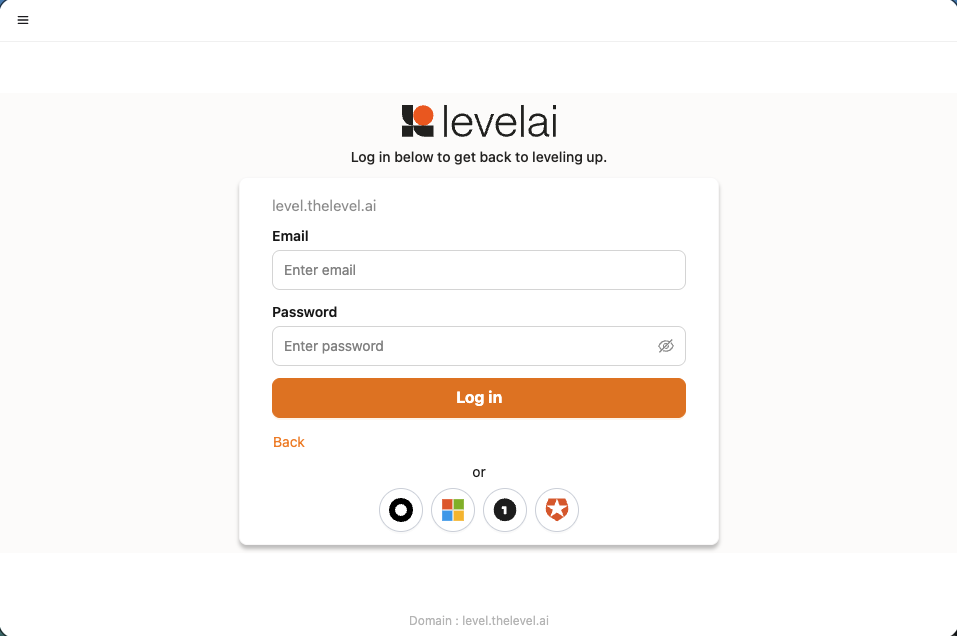
Sign in with your account or SSO.
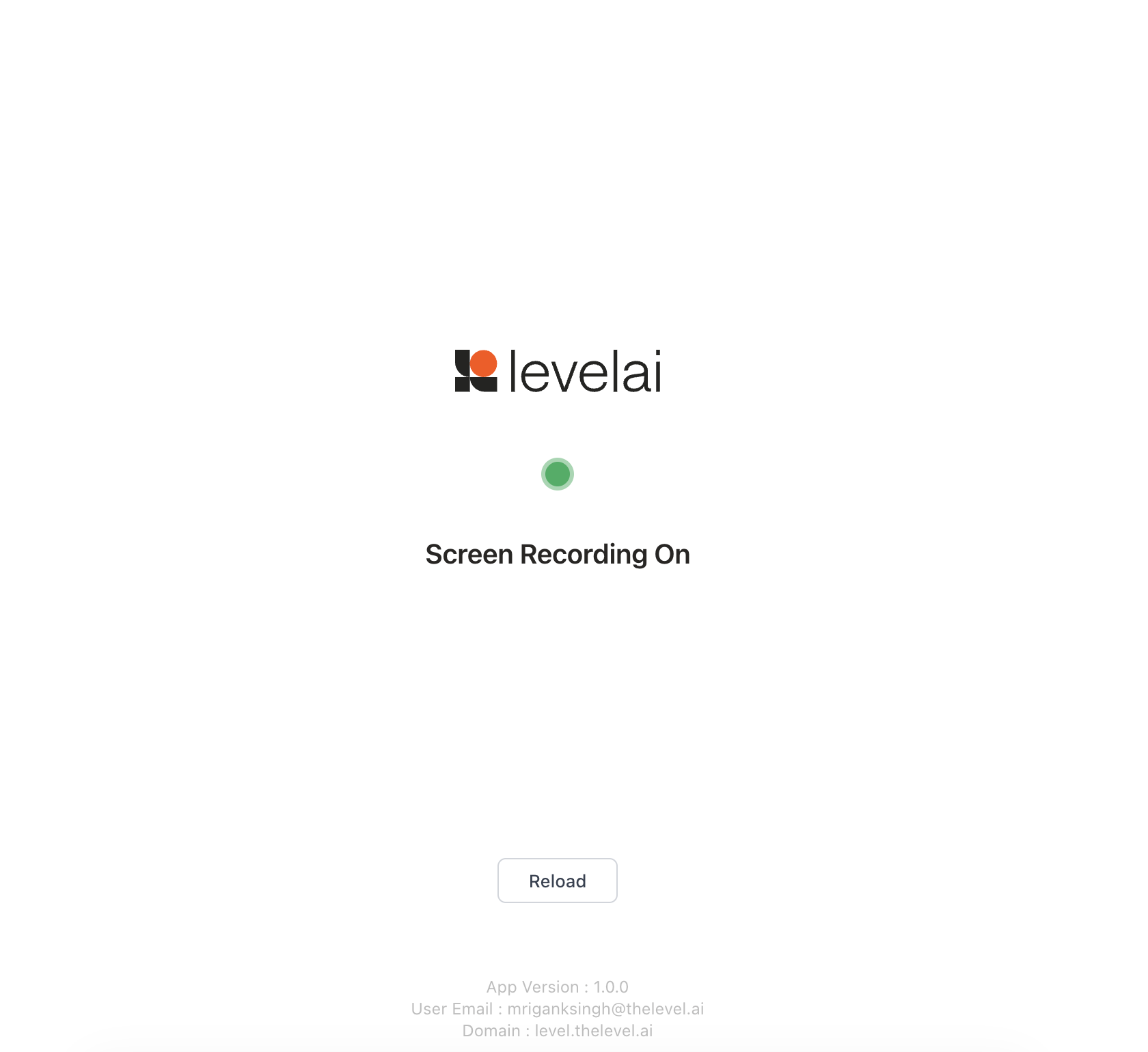
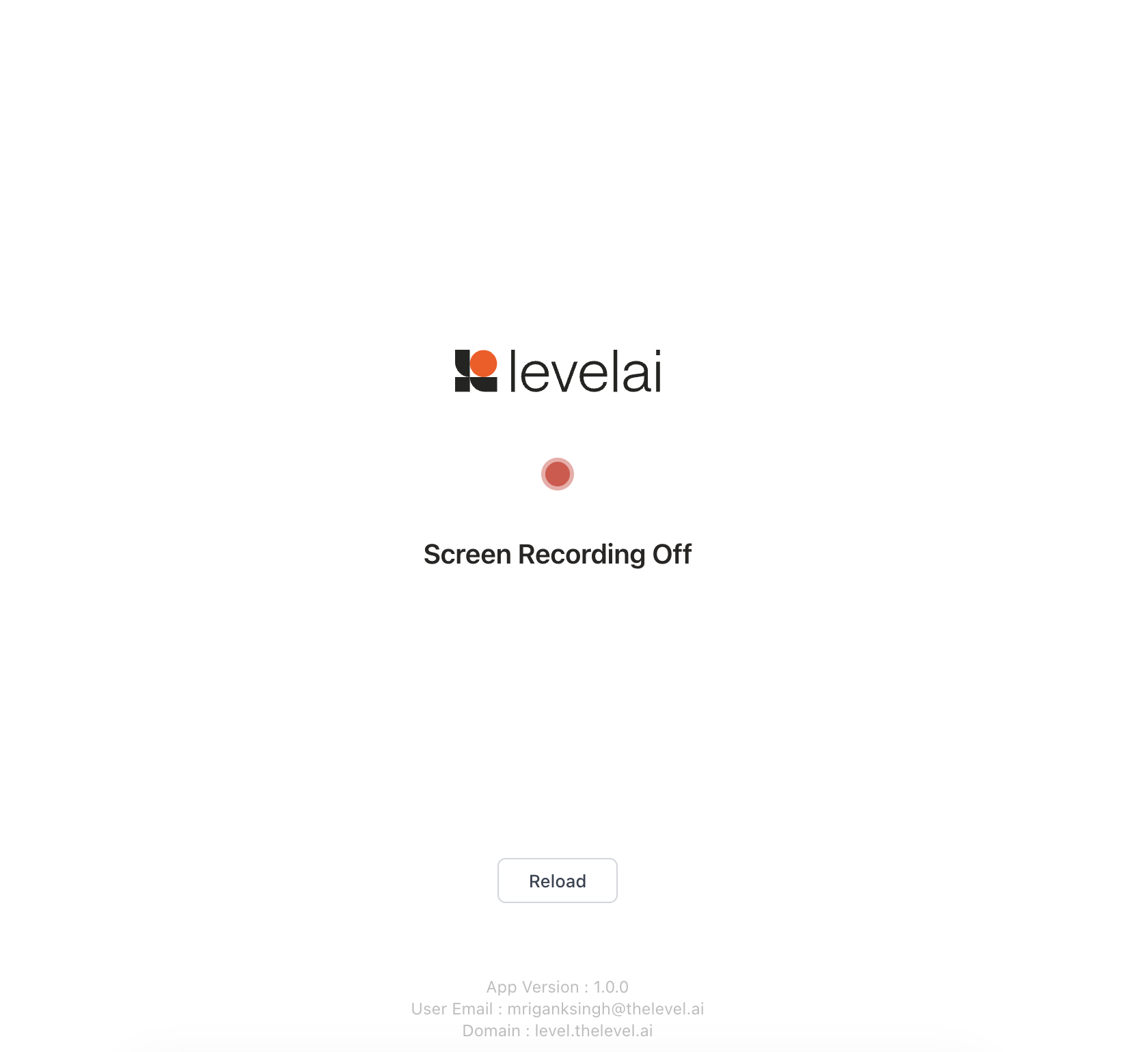
You should see a status page showing whether recording is on or off.
Screen Recording only (Agent Assist not enabled):
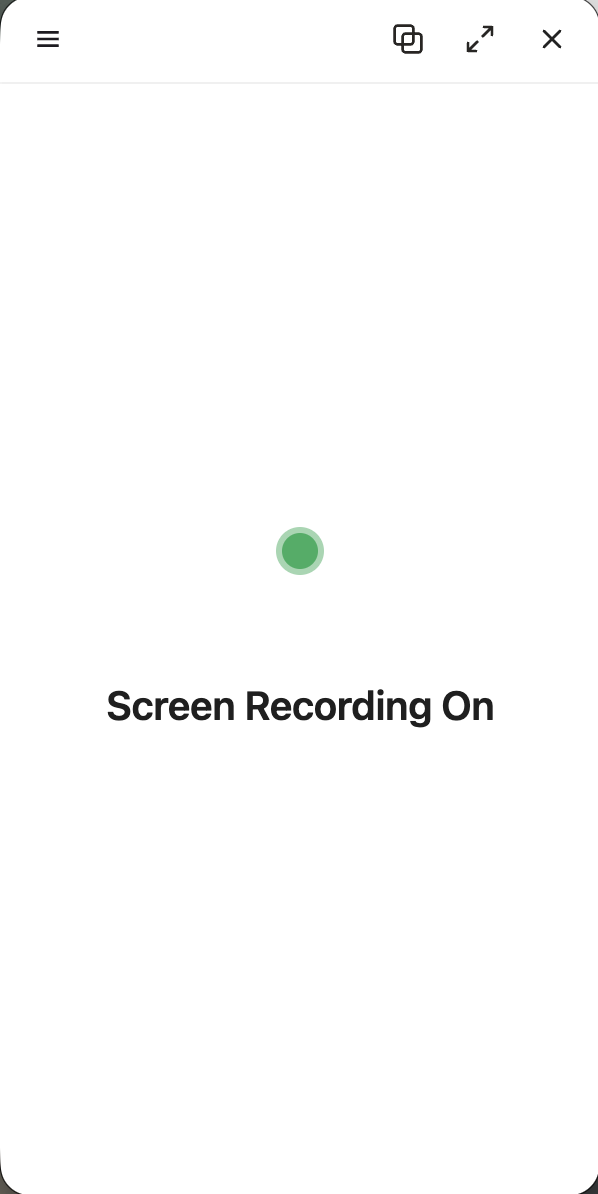
On 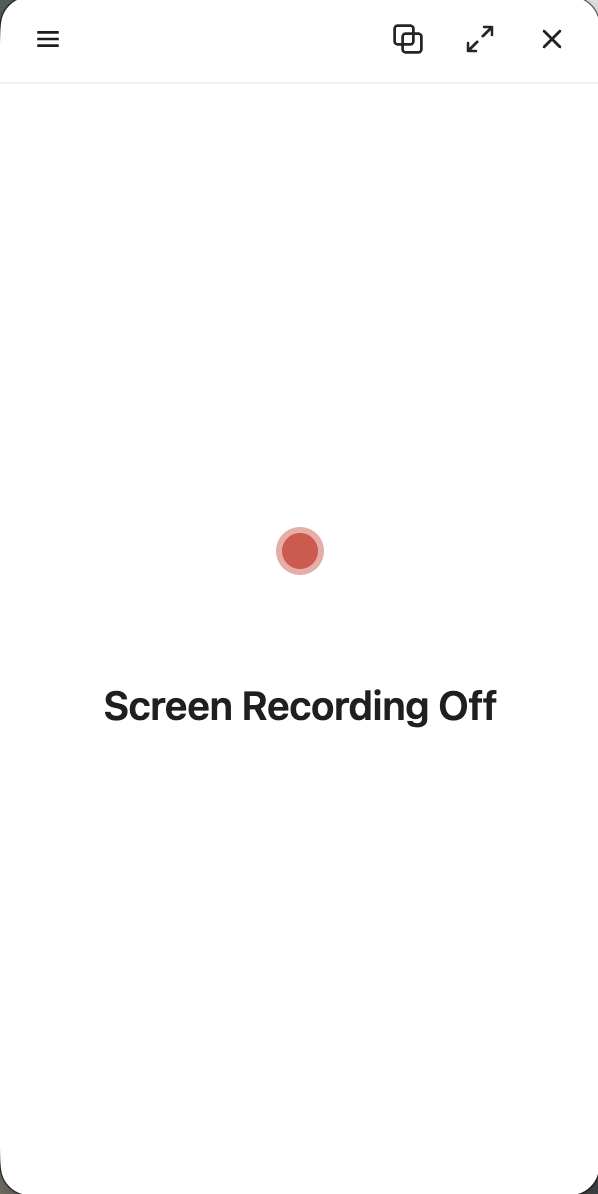
Off Screen Recording and Agent Assist (both enabled for your tenant):
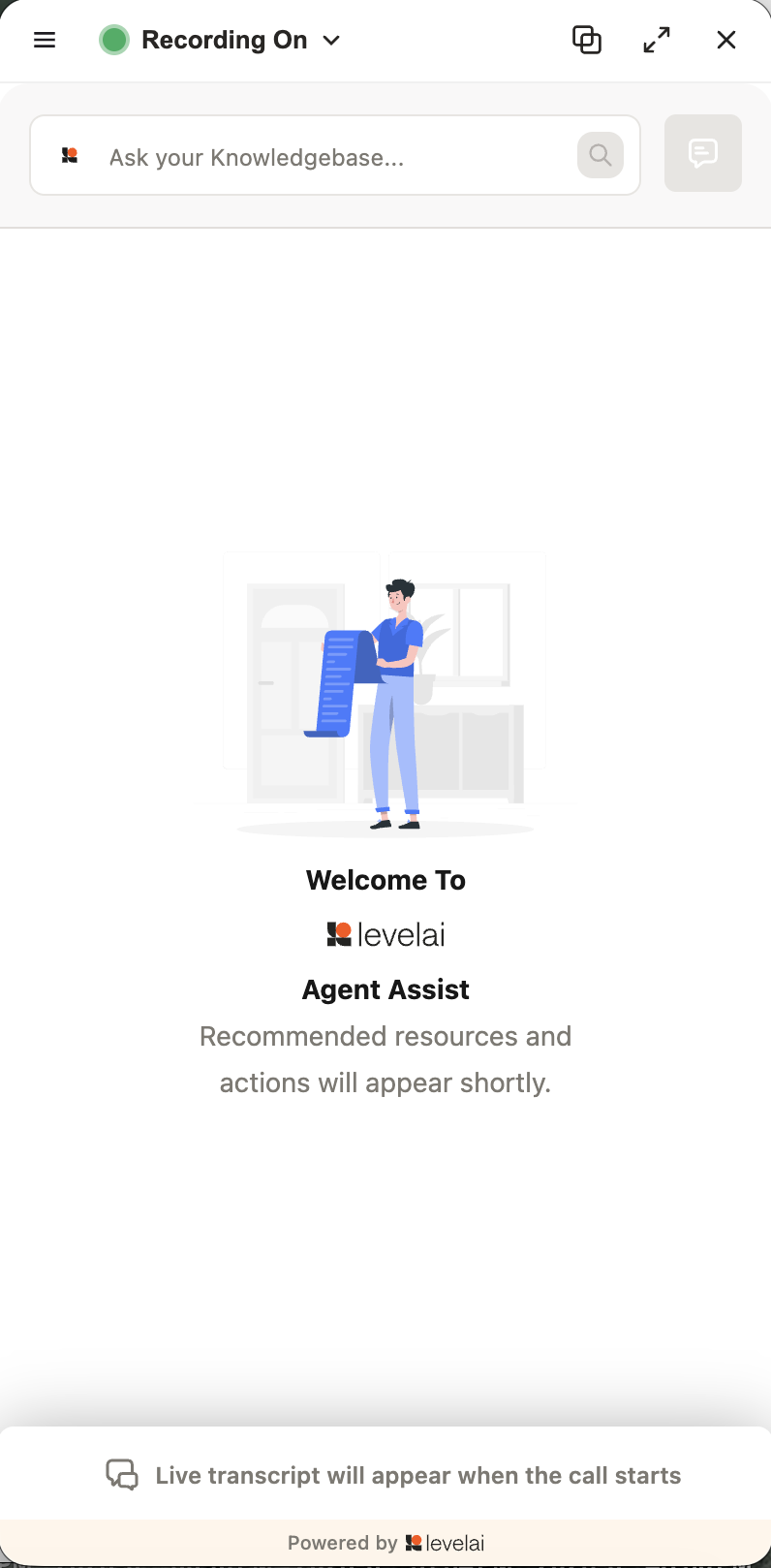
On 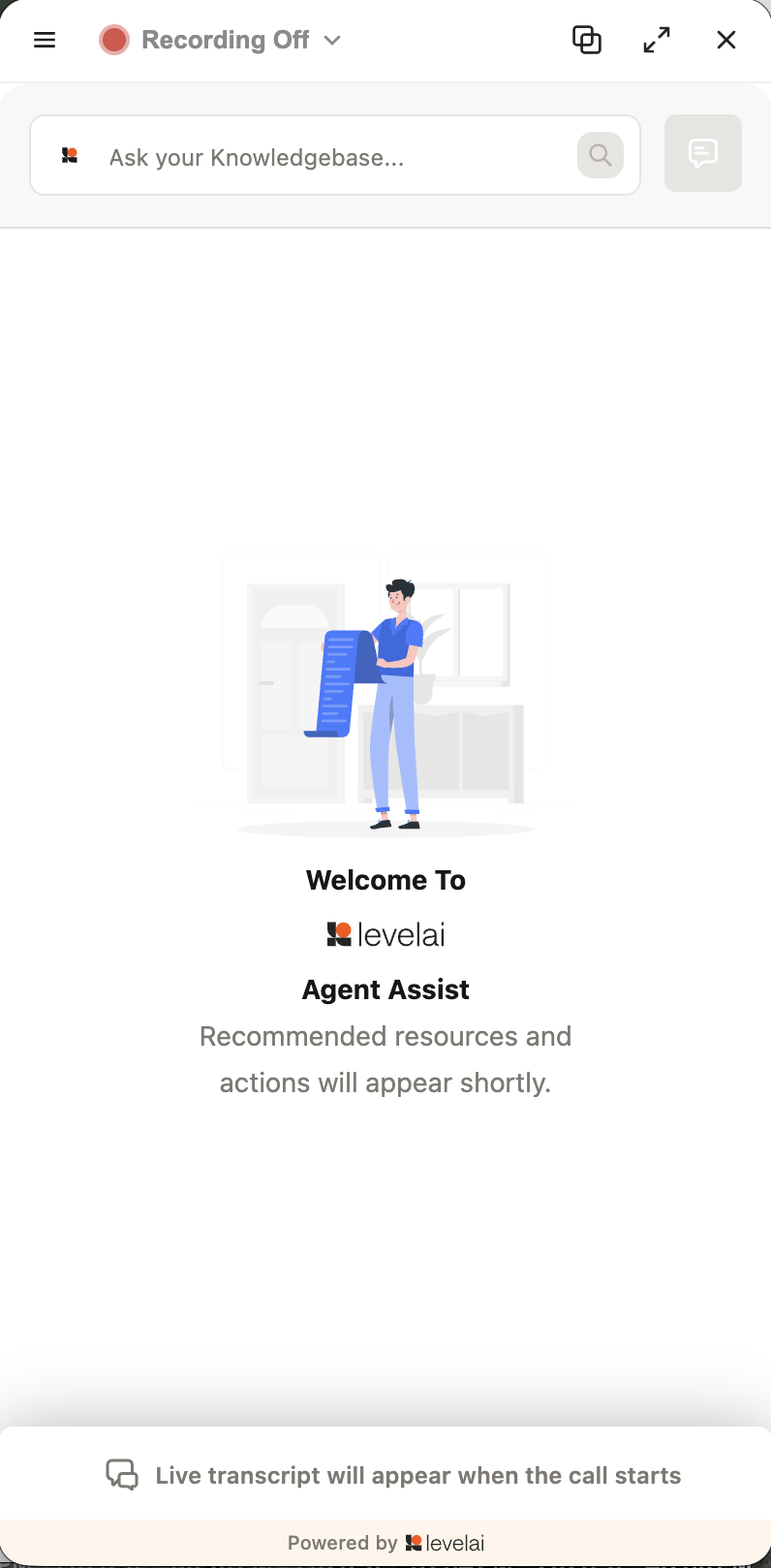
Off
App UI and Layout Options
The Level Screen Recorder v5 desktop application provides a modern, flexible interface designed to stay out of the way while remaining easily accessible. These layout controls apply whether your tenant uses standard Screen Recording or has the Agent Assist integration enabled.
Unified Status and Launch
When you open the application, the widget natively launches on the desktop.
- Screen Recording: The status is clearly displayed as On or Off, accurately reflecting the desktop capture state.
- Agent Assist (If enabled): Defaults to an Offline state when there is no active conversation.
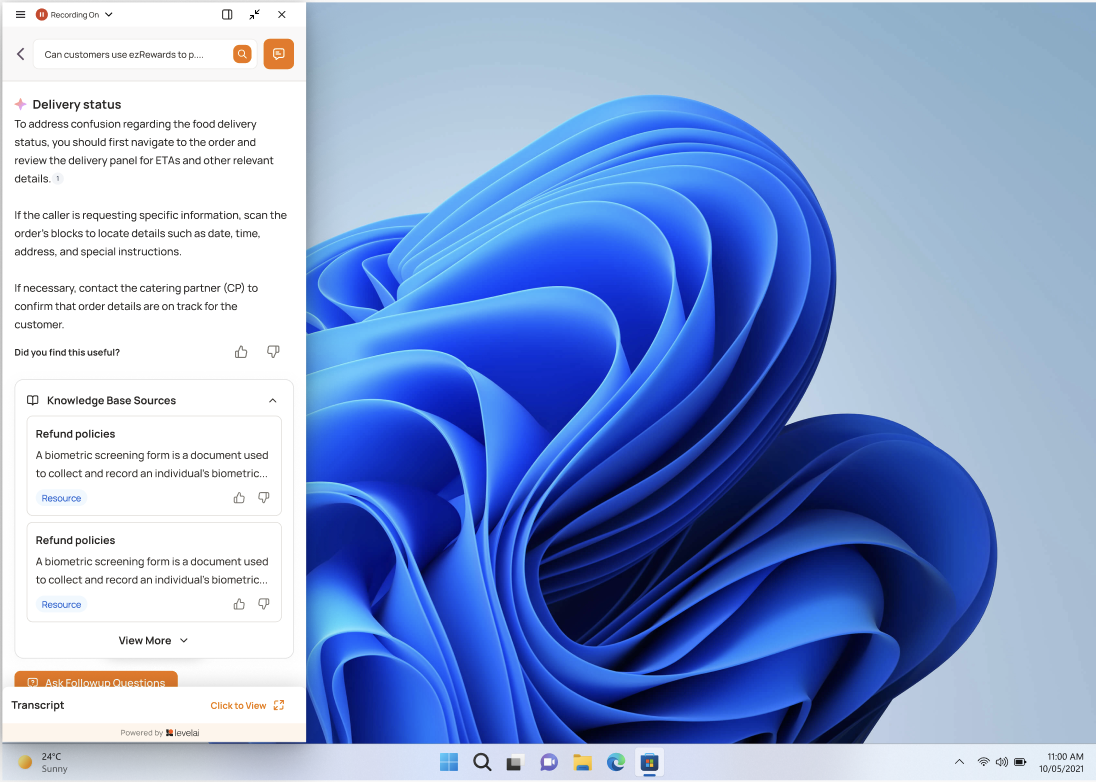
The widget aligned to the left sidebar (showing Agent Assist content when active).
Persistent Visibility
The widget is designed to always stay on top of other windows. Regardless of the applications or screens the agent navigates to, status and assistive guidance remains immediately accessible.
Workspace Controls & Layout Options
Agents can fully customize the widget's positioning to best suit their screen layout and workflow without obstructing their primary tasks.
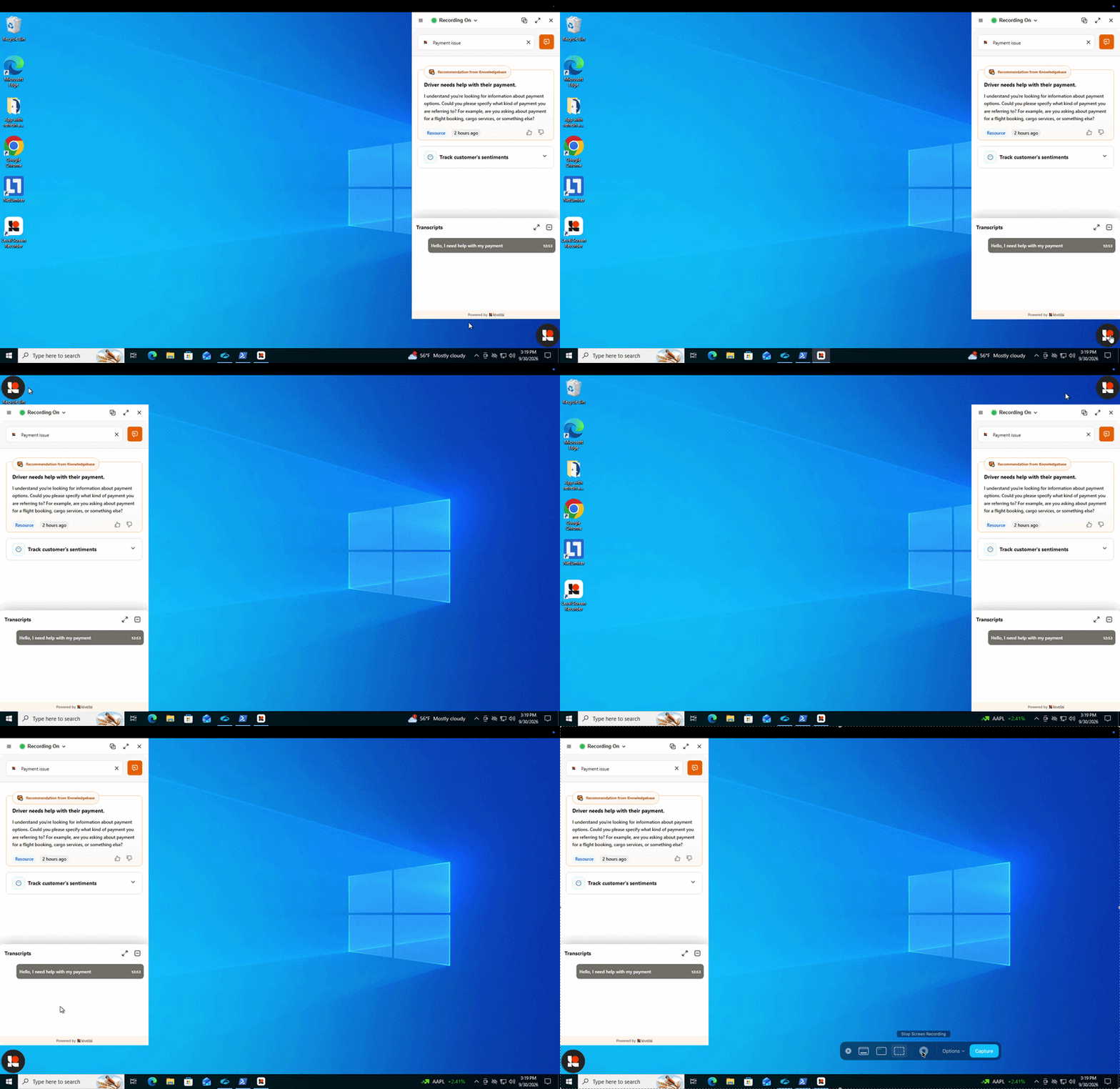
Drag the launcher to detach the widget, or snap it to the edge of the display.
1. Sizing Adjustments
- Maximize: Expand the panel to view more detailed statuses, or extensive knowledge base articles and live transcriptions if Agent Assist is enabled.
- Minimize: Collapse the view to reduce its on-screen footprint when detailed information isn't immediately necessary.
2. Sidebar Alignment
The widget can be snapped cleanly to either edge of the agent's display:
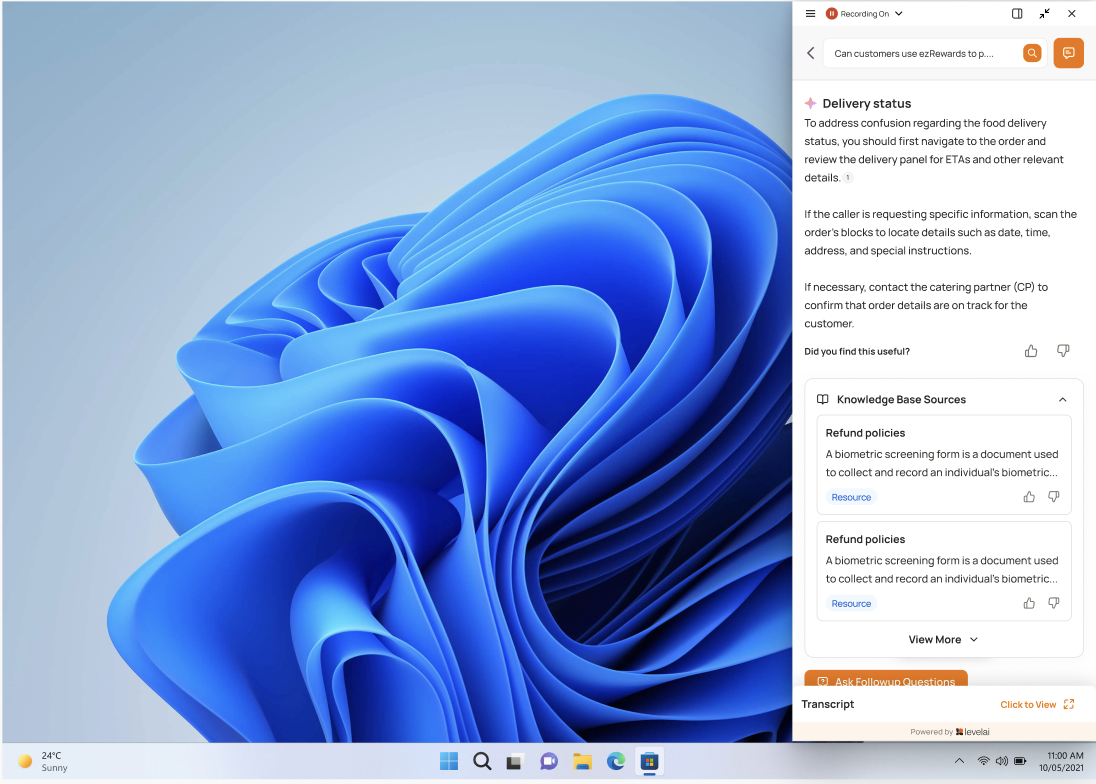
The widget snapped securely to the right sidebar.
3. Floating / Picture-in-Picture Mode
For ultimate flexibility, agents can detach the widget. In floating mode, the interface collapses to a compact view and can be dragged anywhere on the screen. Once released, it will smartly snap to the nearest screen corner.
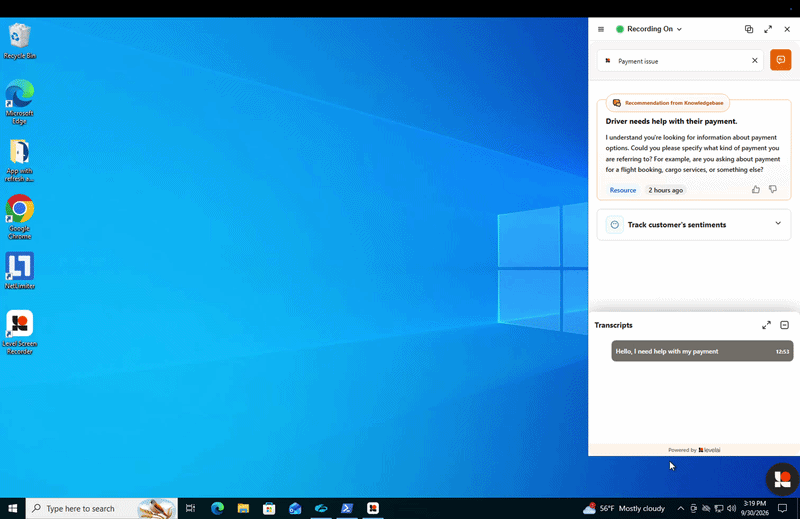
Compact Picture-in-Picture layout snapped to the bottom right corner.
4. Hide / Collapse completely
When agents do not need the widget, such as during offline periods, they can hide the interface completely by clicking the Close icon or double-clicking the Level AI taskbar icon.
[!NOTE] This deployment model is for non-persistent Windows VDI, pooled desktops, and Citrix environments that are rebuilt from a golden image. It deploys the Level Screen Recorder application only. It does not install or use the Level AI Watchdog.
Are you evaluating the Level Screen Recorder for your organization? Read our dedicated Security Architecture & FAQ to understand how we encrypt data and accommodate EDR/Antivirus policies in VDI environments.
Client Device Requirements
Storage
- 2 GB free disk space
Display Resolution
Use the computer’s default screen resolution.
Operating System
- Windows 10 or Windows 11 (64-bit)
- Windows Server 2019 or 2022 with Desktop Experience
- 64-bit only (ARM is not supported)
GPU Requirements
- DirectX 11 graphics with at least 512 MB video memory. (Highly recommended for hardware-accelerated capture. The app gracefully falls back to software-based GDI capture if the virtual desktop lacks a dedicated vGPU or DirectX 11 support, which may increase CPU usage).
Hardware
- 8 GB RAM recommended per active desktop
- 4-core vCPU allocation recommended
Desktop Session
- The user must have an active, unlocked interactive desktop session. A disconnected, locked, or Session 0 background desktop cannot be captured.
Profile Persistence
- Ensure
%APPDATA%\Level Screen Recorder\is preserved across logons. In non-persistent pools without profile roaming, users will need to authenticate again after receiving a fresh desktop.
Network Requirements
Bandwidth
| Screens | Upload |
|---|---|
| 1 | 5 Mbps |
| 2 | 8 Mbps |
| 3 | 12 Mbps |
| 4 | 16 Mbps |
Firewall Whitelisting
Allow outbound traffic from the signed-in user's session. No SYSTEM service needs outbound access for the recorder in this VDI model. Use DNS names rather than fixed IP addresses because Level services and signed download URLs can change IP addresses.
Required for every deployment
| Destination | Port | Purpose |
|---|---|---|
screen-prod.thelevel.ai | TCP 443 | Recorder authentication, configuration, and session APIs |
screen.thelevel.ai | TCP 443 | Secure recording stream (RTMPS) |
screen-app-v3.thelevel.ai | TCP 443 | Level Screen Recorder user interface |
time.windows.com | UDP 123 | Time synchronization |
time.google.com | UDP 123 | Time synchronization fallback |
time.cloudflare.com | UDP 123 | Time synchronization fallback |
time.nist.gov | UDP 123 | Time synchronization fallback |
When Agent Assist is enabled
Add these destinations only if Agent Assist is enabled for your tenant (you see both Screen Recording and Agent Assist in the app; see Step 3: Launch the App). If you use Screen Recording without Agent Assist, skip this table.
| Destination | Port | Purpose |
|---|---|---|
aa-auth.thelevel.ai | TCP 443 | Agent Assist authentication and session cookies |
agent-assist.web.app | TCP 443 | Agent Assist UI module (federated widget and assets) |
launchdarkly.thelevel.ai | TCP 443 | Agent Assist feature-flag configuration |
api-js.mixpanel.com | TCP 443 | Agent Assist analytics events |
events.launchdarkly.com | TCP 443 | Agent Assist feature-flag analytics events |
Important: Permit HTTPS redirects to the destinations listed above and configure the VDI user's proxy and trusted-root settings.
HTTPS inspection
If your organization decrypts HTTPS traffic, place the corporate root CA in Local Computer → Trusted Root Certification Authorities. The Level Screen Recorder reads trusted roots from the Windows certificate store. If inspection still blocks the connection, bypass inspection for the Level destinations above.
Time synchronization
The NTP entries require outbound UDP 123. time.windows.com is normally already available on managed Windows devices. If UDP 123 is blocked, Level Screen Recorder uses HTTPS time through screen-prod.thelevel.ai; accurate Windows system time is still required for authentication and recording timestamps.
Step 1: Provision the Golden Image
Because this deployment architecture does not use the Level AI Watchdog, IT must manually deploy the Level Screen Recorder and manage its lifecycle via the golden image.
- Obtain the production Level Screen Recorder MSI from Level AI.
- Validate the MSI's publisher signature according to your software-distribution policy.
- Install the recorder MSI in the image as an administrator or through the VDI-management tool. The application installs under
C:\Program Files\Level Screen Recorder\. - Create and publish a test catalog/pool from the updated golden image before assigning it to production users.
Step 2: Security Policy (AppLocker, Antivirus, and Firewall)
Ask the client's endpoint-security team to approve the Level Screen Recorder (signed-in user) before deployment. A partial allowlist can leave the application unable to launch or capture the screen.
Review the endpoint-security checklist below to ensure proper operation.
Who needs what
Two contexts, not two people:
| Context | Who this is | Rights |
|---|---|---|
| Installer | An administrator installs the MSI (in the golden image). | Admin is required only to install the MSI into the image. |
| Signed-in user | The person using the VDI session. | Standard-user rights. No admin. |
The installer must be allowed to:
- Run silent
msiexec.exefor Level Screen Recorder install, update, repair, and uninstall within the golden image. - Read and write the Level Screen Recorder folders under
C:\Program Files\andC:\ProgramData\.
The signed-in user must be allowed to:
- Use an interactive desktop (not a locked, disconnected, or Session 0 desktop).
- Read/execute
C:\Program Files\Level Screen Recorder\. - Read/write
%APPDATA%\Level Screen Recorder\,C:\ProgramData\Level Screen Recorder\, and%TEMP%. - Use screen-capture APIs and DirectX Desktop Duplication (DLP that blocks capture produces a black recording).
- Create, query, update, and delete their own
LevelScreenRecorder_Scheduler_<user-SID>scheduled task. - Use the user's Windows proxy settings and the Local Computer trusted-root store.
Antivirus / EDR
To ensure smooth operation, you must configure your EDR/Antivirus solution.
Option A: Trusted Publisher Rule (Highly Recommended) Where policy permits, create a trusted-publisher rule for production files signed by Ujwal Inc (Level AI's code-signing publisher). This is the most secure and robust method.
Option B: Folder Whitelisting (Fallback) If publisher rules are not an option, you must explicitly exclude or allow the following installation and data folders:
C:\Program Files\Level Screen Recorder\
C:\ProgramData\Level Screen Recorder\
And per user:
%APPDATA%\Level Screen Recorder\
Minimum EDR Requirements At minimum, EDR must not:
- Quarantine or terminate the application executable or packaged
LevelScreenRecorderProcessRunner.exe. - Block Level Screen Recorder from using Windows screen-capture APIs.
AppLocker
Option A: Publisher Rule (Recommended) Create publisher rules for Publisher: Ujwal Inc covering Level Screen Recorder, without restricting the rule to one current file version.
Option B: Path Rules (Fallback) If publisher rules are not available, use controlled path rules for:
%ProgramFiles%\Level Screen Recorder\*
Level Screen Recorder normally uses its signed native process runner. If AppLocker, WDAC, EDR, or child-process rules block by parent process, allow these only when launched by Level Screen Recorder:
| Process | Purpose | Runs as |
|---|---|---|
LevelScreenRecorderProcessRunner.exe |
User identity, monitor detection, certificate and security diagnostics, scheduled-task operations | Signed-in user |
schtasks.exe |
Create/query/update the user's auto-launch task | Signed-in user |
reg.exe |
Read the user's Windows proxy settings | Signed-in user |
taskkill.exe |
Recover duplicate or unresponsive Level Screen Recorder processes | Signed-in user |
Blocking all fallback utilities does not grant a security boundary if the native helper remains allowed, but it reduces diagnostics and recovery. Prefer publisher and parent-child rules over broad path exclusions.
Firewall and HTTPS inspection
Apply all entries in Firewall Whitelisting. For TLS inspection requirements, see HTTPS inspection.
Step 3: Launch the App
The Level Screen Recorder MSI automatically writes a machine-wide Windows Registry Run key (HKLM\SOFTWARE\Microsoft\Windows\CurrentVersion\Run) to launch the application when the user signs in. If your VDI environment suppresses or ignores registry Run keys, you must configure a GPO or logon script to start the recorder in the user's interactive session. Do not start it as SYSTEM, a service, or a disconnected background session.
Note: Screenshots may look slightly different in your build.
Enter your organization name, the part before
.thelevel.ai(ask your admin if you are unsure). Example for Level AI:level.Sign in with your account or SSO.
You should see a status page showing whether recording is on or off.
Screen Recording only (Agent Assist not enabled):
On
Off Screen Recording and Agent Assist (both enabled for your tenant):
On
Off
App UI and Layout Options
The Level Screen Recorder v5 desktop application provides a modern, flexible interface designed to stay out of the way while remaining easily accessible. These layout controls apply whether your tenant uses standard Screen Recording or has the Agent Assist integration enabled.
Unified Status and Launch
When you open the application, the widget natively launches on the desktop.
- Screen Recording: The status is clearly displayed as On or Off, accurately reflecting the desktop capture state.
- Agent Assist (If enabled): Defaults to an Offline state when there is no active conversation.
The widget aligned to the left sidebar (showing Agent Assist content when active).
Persistent Visibility
The widget is designed to always stay on top of other windows. Regardless of the applications or screens the agent navigates to, status and assistive guidance remains immediately accessible.
Workspace Controls & Layout Options
Agents can fully customize the widget's positioning to best suit their screen layout and workflow without obstructing their primary tasks.
Drag the launcher to detach the widget, or snap it to the edge of the display.
1. Sizing Adjustments
- Maximize: Expand the panel to view more detailed statuses, or extensive knowledge base articles and live transcriptions if Agent Assist is enabled.
- Minimize: Collapse the view to reduce its on-screen footprint when detailed information isn't immediately necessary.
2. Sidebar Alignment
The widget can be snapped cleanly to either edge of the agent's display:
The widget snapped securely to the right sidebar.
3. Floating / Picture-in-Picture Mode
For ultimate flexibility, agents can detach the widget. In floating mode, the interface collapses to a compact view and can be dragged anywhere on the screen. Once released, it will smartly snap to the nearest screen corner.
Compact Picture-in-Picture layout snapped to the bottom right corner.
4. Hide / Collapse completely
When agents do not need the widget, such as during offline periods, they can hide the interface completely by clicking the Close icon or double-clicking the Level AI taskbar icon.
Step 4: Operate and Update the Image
The recorder does not self-update on Windows when it is deployed without the Watchdog. IT must manage its lifecycle:
- Obtain and validate the approved recorder MSI version.
- Apply it to a copy of the golden image and complete the validation below.
- Publish the validated image to a pilot pool, then promote it through the normal VDI change-management process.
- Roll back by returning the pool to the previously validated image if required.
Do not rely on a user session to download, install, repair, or roll back the recorder. This keeps the installed version deterministic across freshly created desktops.
Step 5: Validation Before Production Rollout
Validate on the same Citrix/VDI configuration, security policy, proxy path, and user-profile policy that production users will receive:
- Verify Auto-launch: Start a fresh VDI session and confirm that the recorder opens in the interactive user desktop.
- Verify Authentication: Authenticate with a test user and confirm the recorder displays the expected On or Off state.
- Verify Capture: Verify that recording is active (for activity-based recording) or place a test call to start it (for trigger-based recording). Confirm the video appears on the associated Level AI timeline or conversation.
- Verify Performance: Review the captured video for a black screen, incorrect monitor selection, or unacceptable CPU use. Repeat with every approved VDI display layout.
- Verify Network & Profile: Confirm that RTMPS and HTTPS connectivity work through the production proxy/TLS-inspection policy and that the VDI profile behavior matches the intended sign-in experience.
This app-only architecture is suitable for VDI when those validation checks pass. It intentionally trades autonomous Watchdog lifecycle management for IT-controlled golden-image releases.
Installation and setup steps
Step 1: Installation
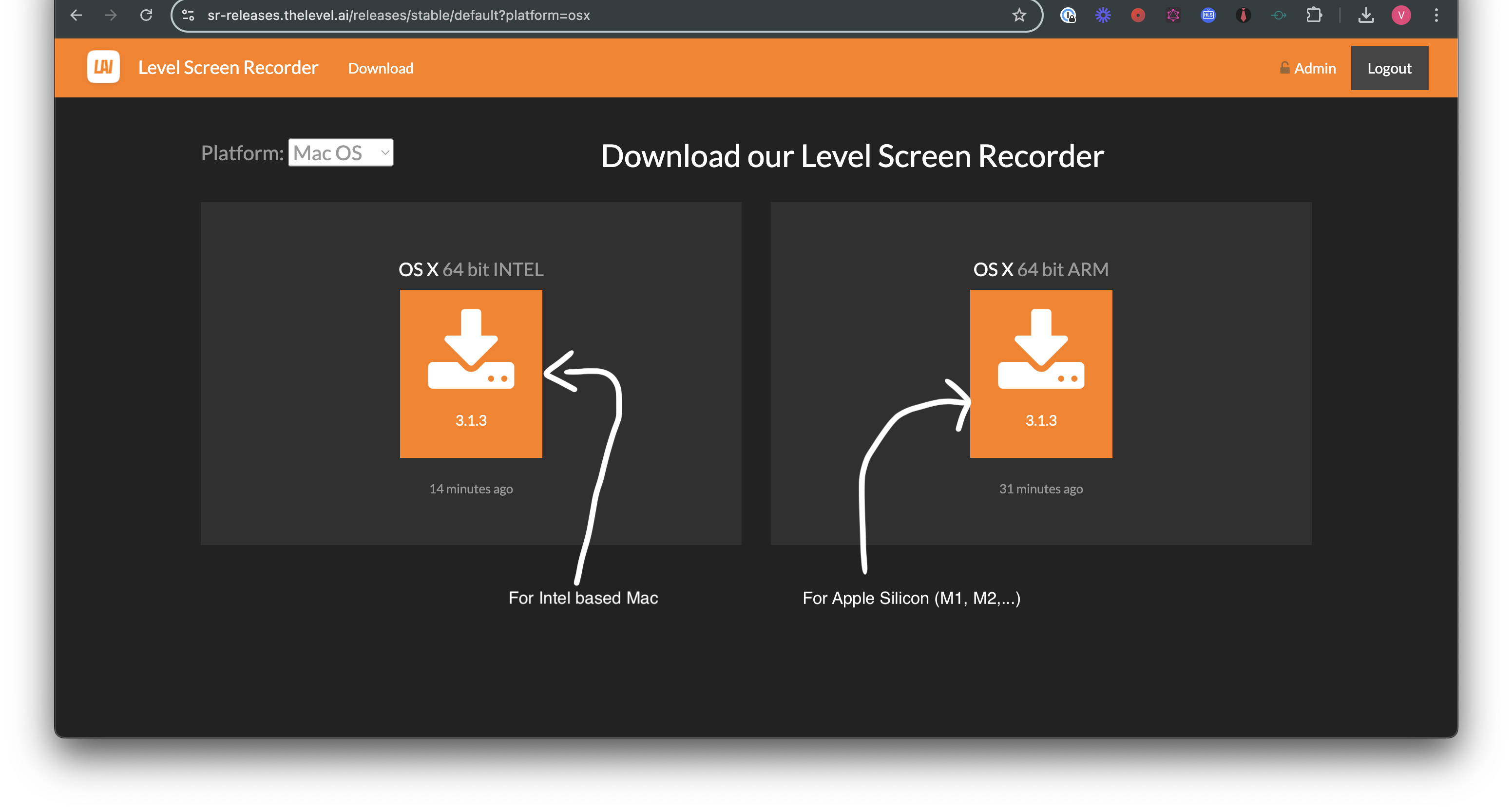
- Navigate to this link and choose macOS in platform dropdown if not already selected, then click the download icon based on the Mac architecture.
- After the download, you should have a file named Level Screen Recorder x.x.x.dmg.
- Double click Level Screen Recorder x.x.x.dmg and drag Level Screen Recorder to the Applications folder.
- Open Level Screen Recorder from Applications. After this, the app launches automatically on system login.
Step 2: Launch the App
Note: Screenshots may differ slightly from the actual UI of the app.
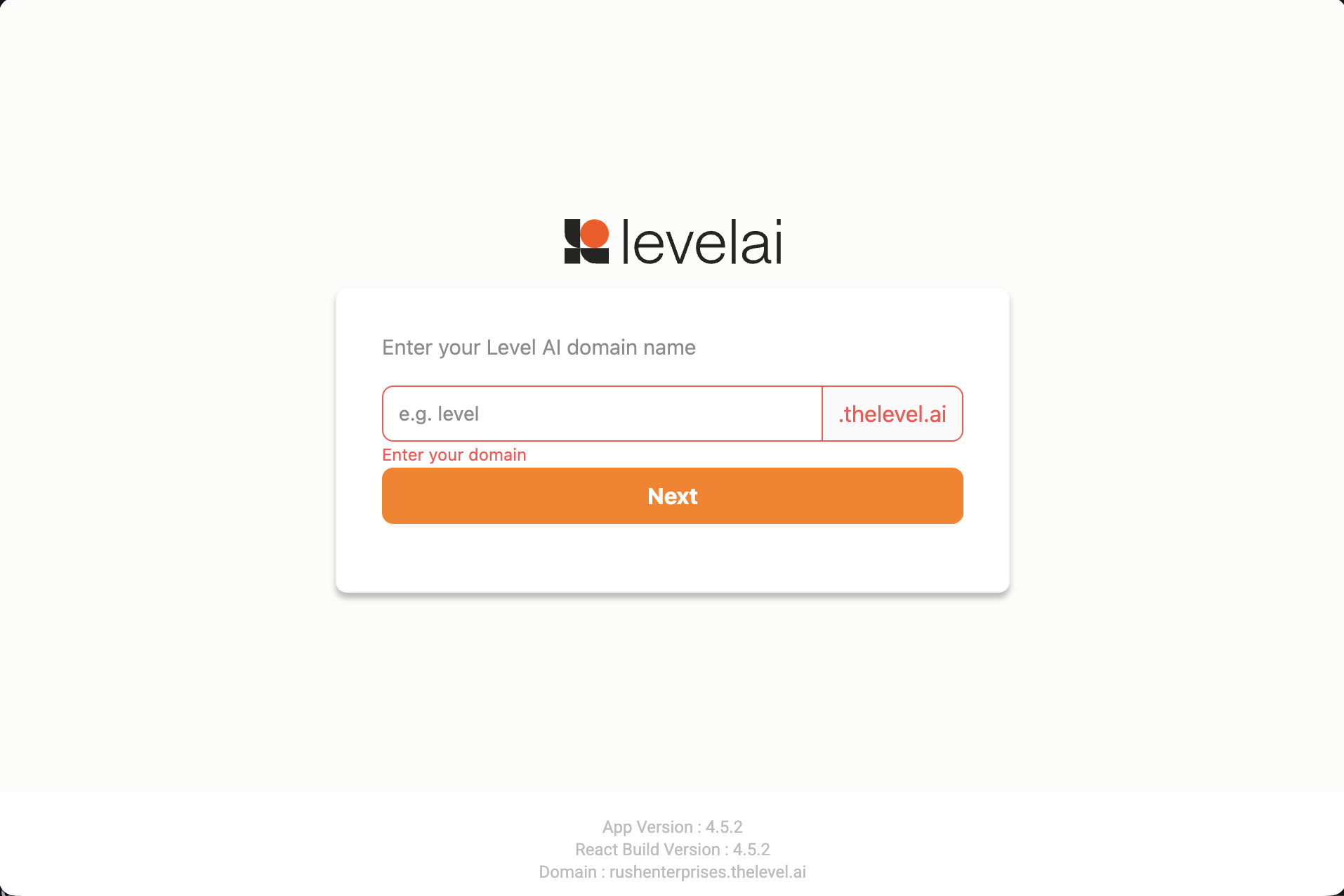
- Organization name: After successful installation and launch, the application asks for the organization name (ask your admin if you do not know it). Example: for Level AI, use
level.
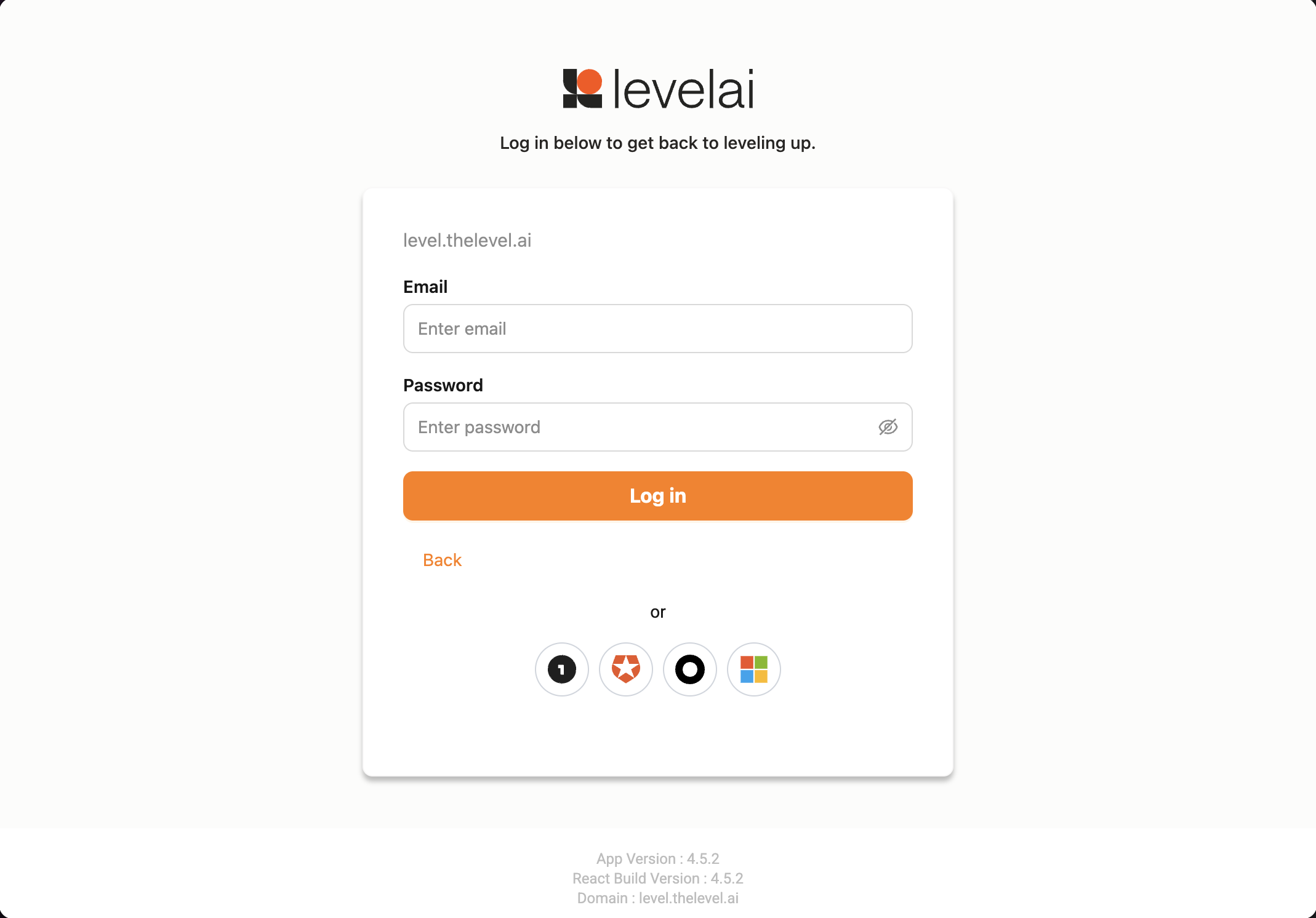
- Login: Proceed to the login page and sign in with your credentials or use available SSO.
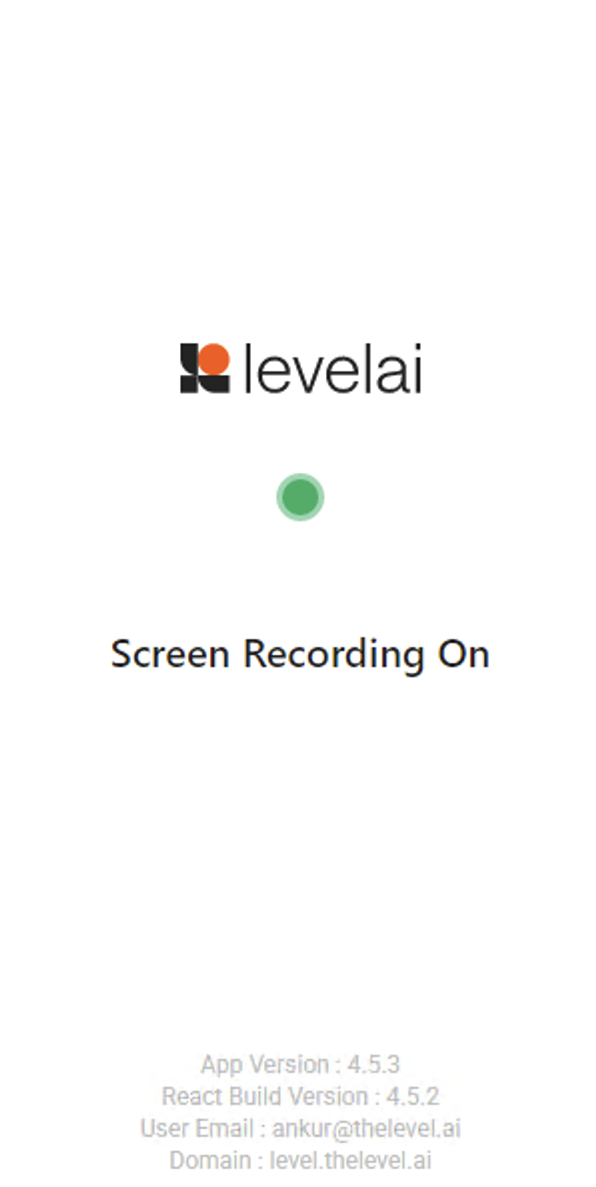
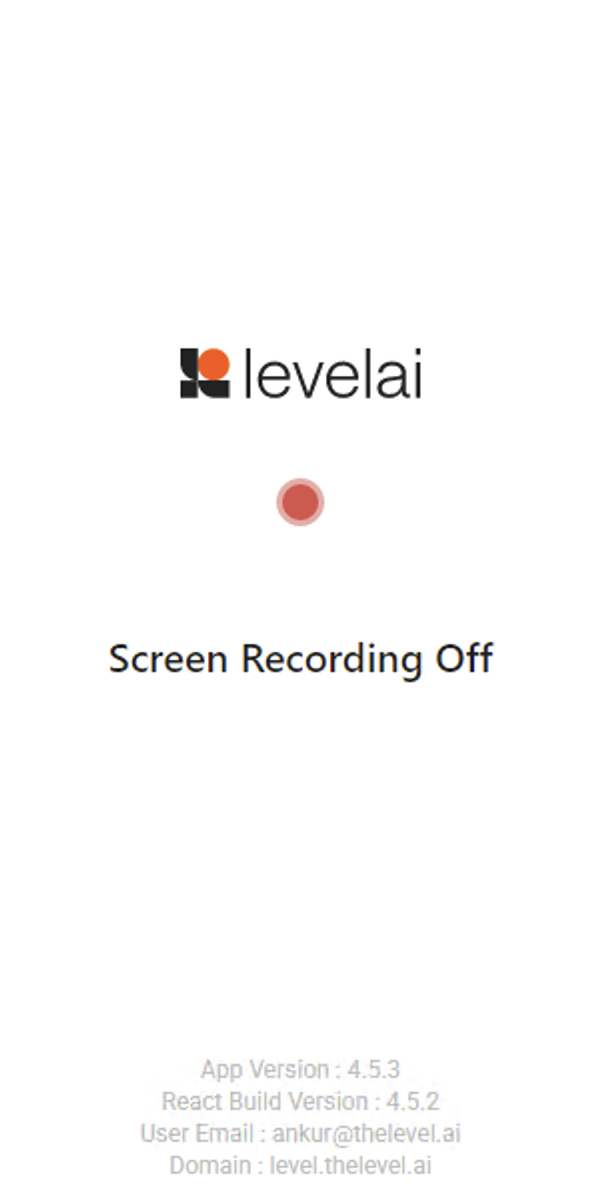
- Status / recording page: You should be greeted with a status page. It shows whether recording is currently on or off; the page reflects the current state.
Client Device Requirements
Supported ChromeOS Version
- Minimum: ChromeOS 132 or later (required for multi-screen capture; earlier versions are not supported).
- Keep managed devices on the latest stable ChromeOS channel.
Bandwidth
- Minimum upload speed: 2 Mbps (for LOW quality with 1 monitor at 3,500 kbps)
- Recommended upload speed: 5 Mbps or higher (for multi-monitor recording; HIGH quality is 5,500 kbps per monitor, up to 22,000 kbps with 4 monitors)
- The app uses at most 40% of the reported downlink for uploads, clamped between 0.25–5 Mbps
- Adaptive quality automatically downgrades the encoding bitrate when bandwidth is limited (the resolution stays fixed at 720p; see below)
Storage
- Installation size: minimal. The app is a signed Web Bundle deployed via Admin Console (no local installer).
- Recording chunks are temporarily stored in IndexedDB (default cap: 5 GB) and automatically uploaded to the cloud and deleted
- Adaptive quality reduces the encoding bitrate when storage usage exceeds 50%; recording pauses automatically at 80% and resumes once chunks are uploaded
CPU and Memory Utilisation
- The app runs inside the Chrome browser process on the Chromebook
- Recording uses canvas-based compositing at 3 FPS with H.264 MP4 encoding
- Adaptive quality monitors CPU pressure and automatically downgrades the encoding bitrate under heavy load
- Multi-monitor recording increases CPU usage proportionally (each additional display adds to the composite canvas)
Display Resolution
It is recommended that agents use the default screen resolution on their device. The app captures at native resolution and composites all displays into a single 720p-tall frame; the width grows proportionally with the number of monitors. Quality profiles (HIGH / MEDIUM / LOW) adjust only the encoding bitrate (HIGH 5,500 / MEDIUM 4,500 / LOW 3,500 kbps per monitor). The composite height stays at 720p.
Server Requirements
Firewall Whitelisting
| DNS / URL | Port | Reason for Whitelisting |
|---|---|---|
prod-api.thelevel.ai | 443 | Level API authorization and login |
screen-prod.thelevel.ai | 443 | Platform API (recording session, token refresh, audit logs) |
storage.googleapis.com | 443 | Chunk uploads to Google Cloud Storage |
http-intake.logs.datadoghq.com | 443 | Send app activity logs to Datadog |
*.ingest.us.sentry.io | 443 | Error and performance monitoring (Sentry) |
sr-releases.thelevel.ai | 443 | IWA update manifest and signed bundle downloads |
www.cloudflare.com | 443 | Time synchronization, primary (HTTPS trace endpoint) |
timeapi.io | 443 | Time synchronization, fallback (if Cloudflare endpoint is unreachable) |
| Your Okta / SSO IdP domain | 443 | SSO authentication (if Okta SSO is configured for your organization) |
Limited Availability Release
To roll out the app to a specific group of users before enabling it org-wide, use Google Admin Console's Org Unit (OU) hierarchy:
- Create a child Org Unit in Google Admin Console (e.g., Org > Screen Recorder Beta Testers).
- Move the target users/devices into that child OU.
- Apply the IWA policies only at this OU level. Follow Step 1: Installation below, selecting this child OU at each step. This covers the Web Bundle ID, Update manifest URL, Web capabilities (screen recording origin), and force install + launch on login settings. Do not apply these policies at the parent OU level.
Only users in the child OU will receive the app. Once validated, you can move additional users into the OU or apply the same policies at a higher level for full rollout.
Installation and setup steps
Step 1: Installation
Note: If you are doing a limited rollout, perform these steps on the child Org Unit you created in the Limited Availability Release section above, not the parent OU.
Go to admin.google.com → Devices → Chrome → Apps & extensions.
Select the Users & browsers tab.
Select the target Org Unit.
Click + → Add Isolated Web App.
Fill in:
Field Value Web bundle ID Provided by Level AI Update manifest URL Provided by Level AI Click Save.
Go to Devices → Chrome → Web capabilities.
Select the same Org Unit.
Click Add origin.
Fill in:
| Field | Value |
|---|---|
| Origin | Provided by Level AI |
| Screen recording | Allowed |
Click Save.
Go to Devices → Chrome → Apps & extensions → Users & browsers.
Select the same Org Unit.
Click the IWA entry for this app (the list shows the update manifest URL and bundle id; selecting it opens the details panel on the right).
In the right-side panel, set Installation policy and Launch on login as below, then click Save.
| Setting | Value |
|---|---|
| Installation policy | Force install + pin to ChromeOS taskbar |
| Launch on login | Force launch and prevent closing |
The panel also shows Web bundle ID and Update manifest URL; they must match the values above. You may see This app is unverified and may not work properly. That is expected for self-hosted IWAs on managed devices.
Under Launch on login, the console may warn that preventing IWAs from being closed might affect device speed and performance; that is normal for this setting.
On a test Chromebook:
- Go to chrome://policy → click Reload policies.
- Confirm IsolatedWebAppInstallForceList shows the web bundle ID and update manifest URL.
- Sign out and sign back in. The app should open automatically.
- Verify the app is pinned to the ChromeOS taskbar.
- Try closing the app window. It should not close.
Policy sync can take 5–30 minutes. Signing out and back in speeds it up.
Step 2: Launch the App
Note: Screenshots may differ slightly from the actual UI of the app.
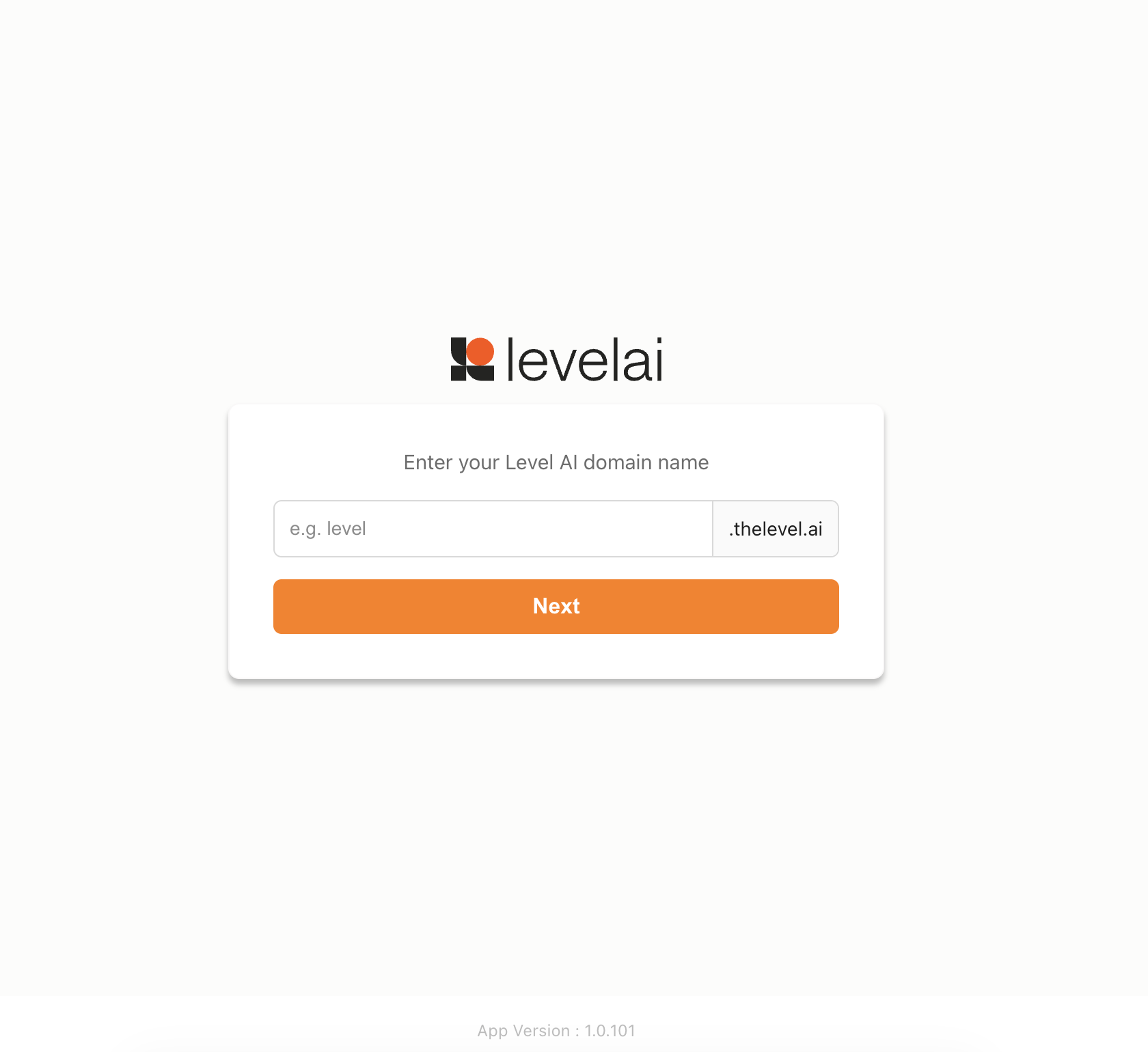
- Organization name: After successful installation and launch, the application asks for the organization name (ask your admin if you do not know it). Example: for Level AI, use
level.
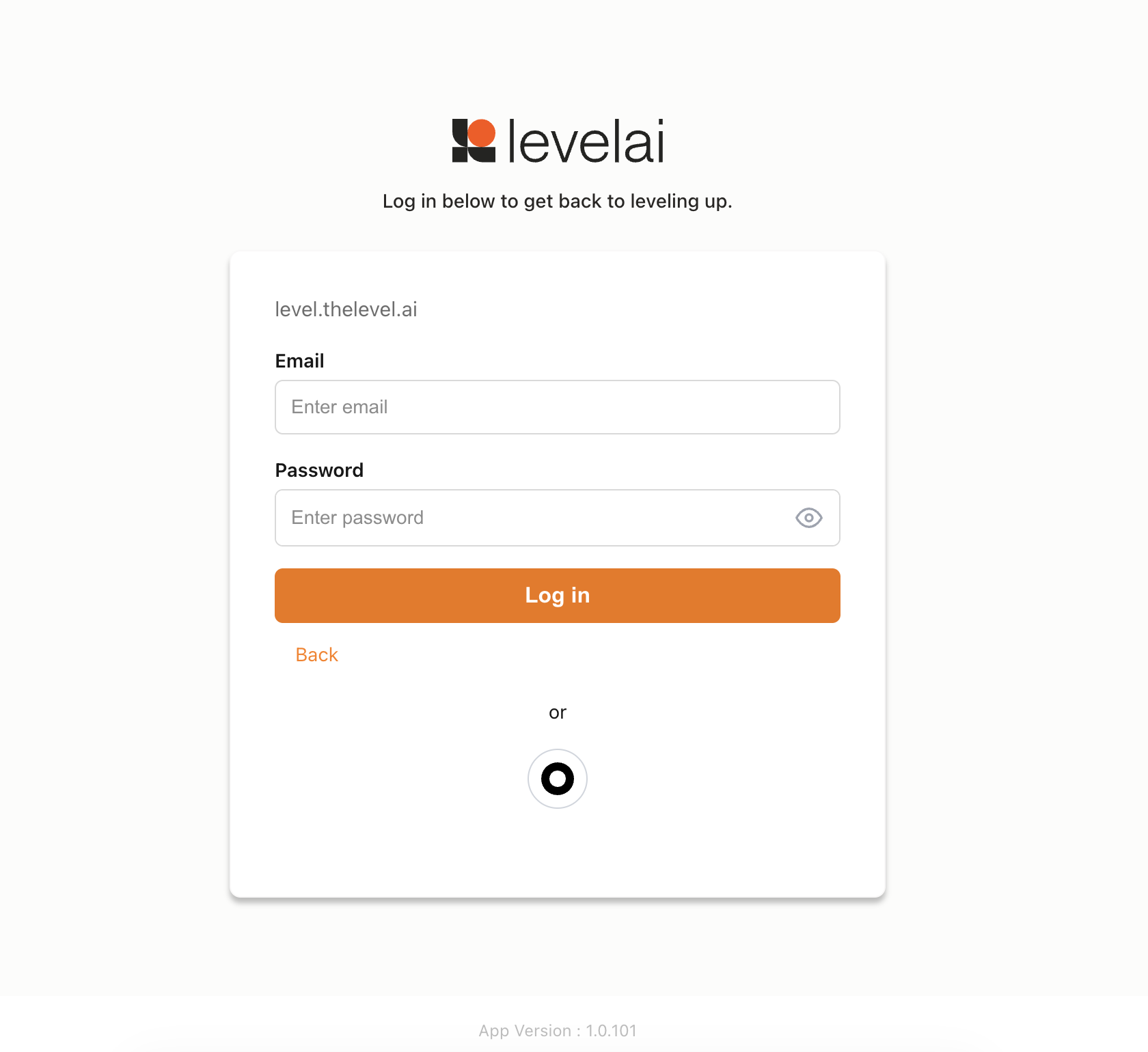
- Login: Proceed to the login page and sign in with your credentials or use available SSO.
- Status / recording page: You should be greeted with a status page. It shows whether recording is currently on or off; the page reflects the current state.