Agent Assist and call audio
Windows — rollout, headset, and capture setup (optional)
Windows
- How call audio works
- Trigger-based recording
- Prerequisites
- Call audio rollout checklist
- Requirements for capture
- Headset and Windows sound
- Microphone access
- Network and firewall
- Endpoint security
- Agent setup (day one)
- In-app audio status
- Testing cycle
- Power, lock, and updates
- Virtual desktops
- Troubleshooting
- Get help
This page covers live call audio for Agent Assist on Windows: headset and sound settings, microphone access, network, and pilot validation. It is optional Step 4 after Screen Recorder is deployed on Windows PCs.
Before call audio
Complete install and baseline security on Screen Recording Requirements, then return here:
Step 1: Install · Step 2: Security policy · Step 3: Launch the app · Agent Assist firewall destinations
LevelAI enables live call audio per tenant and can assign desktop capture to selected agents. Those agents use Level Screen Recorder for the agent and customer audio legs. Other agents continue on CCaaS audio for transcription. In both cases, the CCaaS integration supplies call session events (call start, hold, transfer, and call end) that trigger capture. See Trigger-based recording.
How call audio works
During an active call, Level Screen Recorder captures two separate audio legs and sends them to Agent Assist for transcription and in-call guidance:
| Leg | What is captured | Windows source |
|---|---|---|
| Agent | The agent’s speech | Default Communications microphone (headset microphone) |
| Customer | What the agent hears from the caller | Loopback of default Communications playback (headset earpiece / CCaaS output) |
Call audio is independent of the screen-recording stream. Screen recording may be off while call audio continues, when the agent is entitled for desktop capture.
Agent workflow: Sign in and work in the Agent Assist workspace with the assigned headset and CCaaS client. Capture starts and stops with the CCaaS call. Open Recording On or Recording Off in the title bar. The Audio row shows OFF when idle and ON while capture is running.
Platform: Windows 10 or Windows 11 (64-bit), interactive desktop on a physical PC. Virtual desktops are covered in Virtual desktops.
Trigger-based recording
Level Screen Recorder does not capture call audio continuously. Capture starts and stops when the CCaaS integration sends call session events to Level. The integration controls when capture runs. It does not replace the audio captured on the agent PC.
Confirm these events with LevelAI before rollout:
| Call session event | What it does |
|---|---|
| Call start | Starts capture for that call. |
| Hold | Updates the call session while the call is on hold. |
| Transfer | Updates the call session when the call is transferred. |
| Call end | Stops capture for that call. |
Complete the testing cycle with LevelAI before production. The cycle validates the path from each CCaaS event to capture on the agent PC and to the transcript in Agent Assist. A single connected call is not enough. Include hold and transfer.
Prerequisites
Confirm the following before rollout (install and baseline firewall are in Screen Recording Requirements):
- LevelAI has enabled Agent Assist and configured live call audio for the tenant. Agents selected for desktop capture use Level Screen Recorder for call audio; other in-scope agents use CCaaS audio. Confirm each pilot agent’s entitlement with LevelAI before rollout.
- The CCaaS integration sends call start, hold, transfer, and call end (Trigger-based recording).
- Agents can sign in on a pilot PC (Step 3: Launch the app).
- After sign-in, the Agent Assist workspace loads. If it does not, finish Agent Assist provisioning and firewall rows in Screen Recording Requirements before continuing. The Audio row appears only when desktop call audio is enabled for that agent.
- Each agent uses a headset or USB handset on the CCaaS call path (microphone and earpiece on the same device).
Call audio rollout checklist
Complete every item with LevelAI and your pilot team before production. Resolve any No or Unsure answers, then export a report.
The sections below are the configuration reference for each check.
Requirements for capture
| Requirement | Detail |
|---|---|
| OS | Windows 10 or Windows 11, 64-bit (x64). |
| Session | Interactive desktop (the agent is signed in at the console). Session 0 and service-only sessions cannot capture call audio. |
| Headset | One device for both microphone and earpiece on the call. Wired USB headsets are preferred. |
| Windows sound | That headset is Default Communications Device on the Recording tab and the Playback tab. |
| CCaaS audio | Softphone or browser uses the same communications playback and recording devices. |
| Microphone privacy | Windows allows Level Screen Recorder to use the microphone. |
| Network | Outbound HTTPS and WSS (TCP 443) as listed below, for the signed-in user. |
| Endpoint security | Capture helper (gst-launch-1.0.exe under the Level installation folder) is allowed to run. |
Call audio uses the Windows communications microphone and a loopback of communications playback. A second sound card, Stereo Mix, or a virtual cable is not required.
Headset and Windows sound
Level uses the Windows Default Communications Device. This is separate from Default Device, which Windows uses for music and system sounds.
Configure the CCaaS headset as the communications device for both recording and playback. If communications playback remains on laptop speakers while the agent listens on a headset, customer audio is not captured. If communications recording remains on the laptop microphone array while the agent speaks into the headset, agent audio is not captured.
Set communications devices
Complete these steps on every agent PC after connecting the headset, and again after Windows resets the default (for example after unplug, dock, or Bluetooth reconnect).
- Connect the headset. Then open CCaaS and Level Screen Recorder.
- Open Settings → System → Sound, or Control Panel → Sound.
- Recording tab (or Input): right-click the headset microphone → Set as Default Communications Device.
- Playback tab (or Output): right-click the same headset → Set as Default Communications Device.
- Default Device may remain on speakers for system sounds. Communications must match the call headset.
- In the CCaaS application or browser, set microphone and speaker (headset) to that same device, or to “Default communications” / “Same as system”.
Windows 11: Settings → System → Sound → More sound settings. This opens the Sound control panel with Recording and Playback tabs and the communications default.
USB, Bluetooth, and analog headsets
| Type | Recommendation |
|---|---|
| Wired USB headset | Preferred. Connect before the shift. Most consistent for both legs. |
| USB handset / desk phone dongle | Supported when Windows exposes it as the communications recording and playback device, and CCaaS uses it. |
| 3.5 mm analog headset | Supported when it is the communications default. On combined analog jacks, confirm both input and output. |
| Bluetooth headset | Supported when it remains the communications default. Pair and connect before sign-in. Keep the same profile (hands-free) for the duration of the call. After reconnect, set the communications default again if Windows changed it. |
| Laptop speakers and built-in microphone | Use only when they are the intended call path. When the agent uses a headset, set that headset as the communications device so capture matches what the agent hears and speaks. |
After disconnect: Windows often restores the laptop as the communications default. Capture resumes after the headset is again the communications device. Level does not substitute laptop speakers or the built-in array for an active headset call path. Reconnect the headset, restore communications defaults, then continue.
Exclusive mode: Some softphones take exclusive control of the headset. Level uses shared mode. If the banner Audio device not available appears while the headset is connected, open Sound control panel → device → Properties → Advanced, and clear Allow applications to take exclusive control of this device.
Multiple devices: Docking stations, webcam microphones, and “Listen to this device” add extra endpoints. Leave unused devices disabled, or leave them unset as the communications default.
Softphone and browser CCaaS
Customer audio is the signal that plays on the communications playback device. Route the call through that device.
- Dedicated CCaaS / softphone — In the application’s audio settings, select the headset (or default communications device) for microphone and speaker. Keep caller audio on the same device the agent uses to listen.
- Browser-based CCaaS — Allow microphone access for the CCaaS site. In site or meeting audio settings, select the same headset. Recheck after a browser update or a new profile.
- Mute — If Windows is muted, Agent Assist does not record. If the agent mutes inside the CCaaS client, Agent Assist continues to capture audio.
- Call-control accessories — Configure USB call-control devices so Windows communications playback remains on the device the agent uses to listen.
Microphone access
The agent leg requires Windows microphone permission for Level Screen Recorder. The customer leg uses playback loopback and does not replace this permission.
- Settings → Privacy & security → Microphone
- Turn Microphone access On.
- Turn Let desktop apps access your microphone On.
- If per-application toggles are listed, allow Level Screen Recorder.
Intune / Group Policy: Deploy an allow rule for Level Screen Recorder (the desktop app). A policy that blocks desktop applications from using the microphone replaces Agent Assist with the audio permission recovery screen.
When permission is missing, Agent Assist is replaced by a recovery screen titled Audio recording permission is needed for Levelai app to work. Agents select Enable Audio (opens Windows microphone settings) and follow the on-screen steps:
- Settings → Privacy & security
- Privacy & security → Microphone → Microphone access → On
- Return to the Level app and select Enable Audio again.
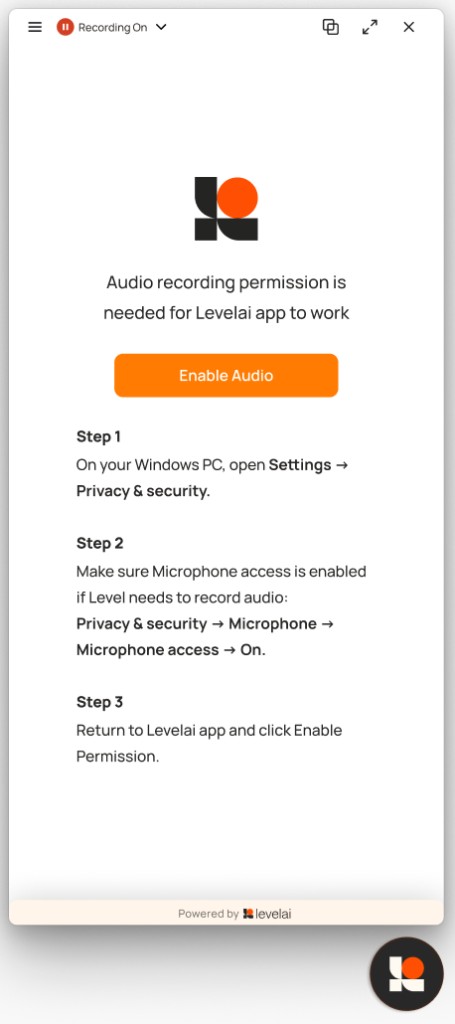
The Recording menu Audio row also shows an alert and Enable Audio. After microphone access is granted, Agent Assist returns and Audio shows OFF until a call starts.
Agents who use Agent Assist without desktop call audio do not require this additional microphone policy.
Network and firewall
Allow the required destinations and Agent Assist firewall destinations in Firewall Whitelisting on Screen Recording Requirements, for both the signed-in user and SYSTEM.
Call audio also requires:
| Destination | Port | Purpose |
|---|---|---|
agent-assist.thelevel.ai |
TCP 443 (HTTPS and WSS) | Live call-audio stream (two secure WebSocket connections per call — agent leg and customer leg) |
screen-prod.thelevel.ai |
TCP 443 (HTTPS, long-lived) | Same Trigger host as recording controls. The application maintains a connection so capture can start and stop with the CCaaS call. |
aa-auth.thelevel.ai |
TCP 443 | Listed in the Agent Assist table. Used for session and call-audio entitlement. |
Apply the same HTTPS inspection guidance on Screen Recording Requirements. Inspection that interrupts WebSocket upgrades to agent-assist.thelevel.ai can prevent capture from reaching ON during a call.
Dedicated or tenant-specific Level environments may use different hostnames. Use the list Level provides for the rollout.
Endpoint security
Call audio starts a bundled helper, gst-launch-1.0.exe, from the Level Screen Recorder installation folder (in addition to helpers used for screen recording). Allow this process to run for the duration of the call.
Extend the allowlists from Step 2: Security policy:
- Permit
gst-launch-1.0.exeand related files under%ProgramFiles%\Level Screen Recorder\when launched by Level Screen Recorder. - Allow Windows shared-mode audio capture and playback loopback for the signed-in user.
- Allow outbound WSS to
agent-assist.thelevel.ai.
Allow EDR to leave helper binaries and DLLs in the Level Screen Recorder installation directory.
Agent setup (day one)
Provide this sequence to every agent, or include steps 2–4 in the image or Group Policy.
- Connect the headset. Confirm that Windows lists it in Sound settings.
- Set it as Default Communications Device for recording and playback (Set communications devices).
- Open the CCaaS application or browser and select that headset for microphone and speaker.
- Open Level Screen Recorder and sign in (Step 3: Launch the app).
- Confirm that the Agent Assist workspace is visible (home screen when not on a call).
- Select Recording On or Recording Off in the title bar. Confirm that the menu includes Screen and Audio, and that Audio shows OFF while idle.
- Take calls as usual. During a call, Audio shows ON. Use transcript and guidance in Agent Assist.
- After the call ends, Audio returns to OFF.
If Audio stays OFF during a live CCaaS call, the workstation is configured and the call has not been signaled to Level. Contact Level or IT to confirm Agent Assist entitlement and CCaaS integration.
In-app audio status
In a standard Watchdog deployment (screen recording session plus Agent Assist), call audio appears in the Recording menu: select Recording On or Recording Off in the title bar. The menu lists Audio and Screen.
| What agents see | When | Agent action |
|---|---|---|
| Agent Assist home | Signed in, not on a captured call | Continue work. |
| Audio — OFF | Between calls | None |
| Audio — ON | Capture is running for the current CCaaS call | Use transcript and guidance in Agent Assist |
| Audio — Reconnecting | Temporary stream retry during a call | Continue the call. Guidance may pause briefly. |
| Audio — alert plus Enable Audio | Windows microphone access is blocked | Select Enable Audio and complete the recovery screen |
| Recovery screen: Audio recording permission is needed for Levelai app to work. | Same microphone block; Agent Assist is hidden until access is granted | Enable Audio, complete Steps 1–2 in Windows Settings, then Enable Audio again in the app |
| Banner: Audio device not available | Communications headset missing, disconnected, or in exclusive use | Reconnect the headset and restore communications defaults |
| Banner: Unable to start | Capture did not start for this call | Continue the call. Escalate if it persists. |
| Banner: Not supported on this computer | Session cannot capture (typical on VDI / non-console) | Contact IT. Use a physical Windows PC unless Level has approved the profile. |
| No Audio row | Desktop call audio not enabled for this agent, or Agent Assist session unavailable | IT confirms entitlement with LevelAI |
Testing cycle
Run this cycle on a pilot PC with LevelAI after the call audio rollout checklist items, and before production. It confirms that each CCaaS session event triggers the expected capture and that both sides of the call appear in Agent Assist.
- Sign in. Confirm the Agent Assist workspace loads. Select Recording On or Recording Off and confirm Audio — OFF while idle.
- Call start. Place or receive a test CCaaS call with a second person. Confirm Audio — ON. The agent speaks a short phrase; the tester speaks a short phrase. Confirm that both sides appear in the transcript.
- Hold. Place the call on hold, then resume it. Confirm Agent Assist follows the hold and the resumed call.
- Transfer. Transfer the call. Confirm Agent Assist follows the transfer and the transcript continues for the agent who remains on the call.
- Call end. End the call. Confirm Audio — OFF.
- Disconnect and reconnect the USB headset, restore the communications default if Windows changed it, and repeat a short call through start and end.
Move to production only after call start, hold, transfer, and call end have each been validated.
Power, lock, and updates
- Lock (Win+L): Call audio continues. Locking the screen is not the same as sleep.
- Sleep / lid close: Capture stops. After wake, the app may resume if the CCaaS call is still active. Use power policies that keep contact-center workstations awake during shifts.
- Updates: The app defers installing a pending update while a call-audio session is in progress. Allow the call to finish.
- Quit during a call: Windows shows Stop call audio and quit? Capture and Agent Assist stop for that call if the agent chooses Quit.
Virtual desktops
On many VDI and DaaS sessions, call audio is unavailable. The Agent Assist banner shows Not supported on this computer, and the Recording menu Audio row shows an alert. Use a physical Windows PC (interactive console session) unless Level has confirmed a VDI audio-redirection profile for the environment.
The Windows VDI section on Screen Recording Requirements covers Recorder on a golden image. That model does not by itself enable call audio on pooled desktops.
Troubleshooting
- No Audio row after login — Desktop call audio is not enabled for this agent, or Agent Assist sign-in is incomplete. Confirm with LevelAI and confirm that the Agent Assist workspace loads.
- Recovery screen / Enable Audio — Complete Microphone access. If Intune or Group Policy manages privacy, update the policy.
- Banner: Audio device not available — Headset is disconnected, communications default has changed, or exclusive mode is enabled. Reconnect; set communications devices; disable exclusive control.
- Agent leg silent, customer present — Communications recording is not the headset microphone (for example the laptop array). Set the headset microphone as Default Communications Device and match the CCaaS microphone.
- Customer leg silent, agent present — Caller audio is playing on speakers or another device. Set the headset as Default Communications playback and match the CCaaS speaker or headset.
- Both legs silent while Audio is ON — Confirm that Windows is not muted. A mute inside the CCaaS client does not stop capture. Collect time, user, and whether Audio showed ON, then contact support.
- Audio stays OFF during a live CCaaS call — Capture was not signaled to Level. Confirm Agent Assist entitlement, call-audio entitlement, and CCaaS integration.
- Audio — Reconnecting, or banner Unable to start — Review firewall and TLS inspection for WSS to
agent-assist.thelevel.aiand the Trigger connection onscreen-prod.thelevel.ai. - Banner: Not supported on this computer — Confirm the session is an interactive Windows console (not typical VDI). See Virtual desktops.
- Different results on two PCs — Compare communications defaults, microphone policy, EDR allowlists, and whether the second PC is VDI.
- Bluetooth interruption mid-call — Reconnect, restore the communications default. For production, a wired USB headset is preferred.
Support escalation
When opening a ticket for call audio, include:
- OS build and whether the session is physical, VDI, or DaaS
- Headset model and connection (USB / Bluetooth / analog)
- Whether Audio reached ON during the call
- Whether the microphone recovery screen or an Agent Assist banner was visible, and the banner title if shown
- Whether firewall or TLS inspection applies
- Approximate call time and agent email (no customer PII in the ticket body unless your policy allows it)